IPTV Buffering: 15 Causes and How to Fix It in 2026
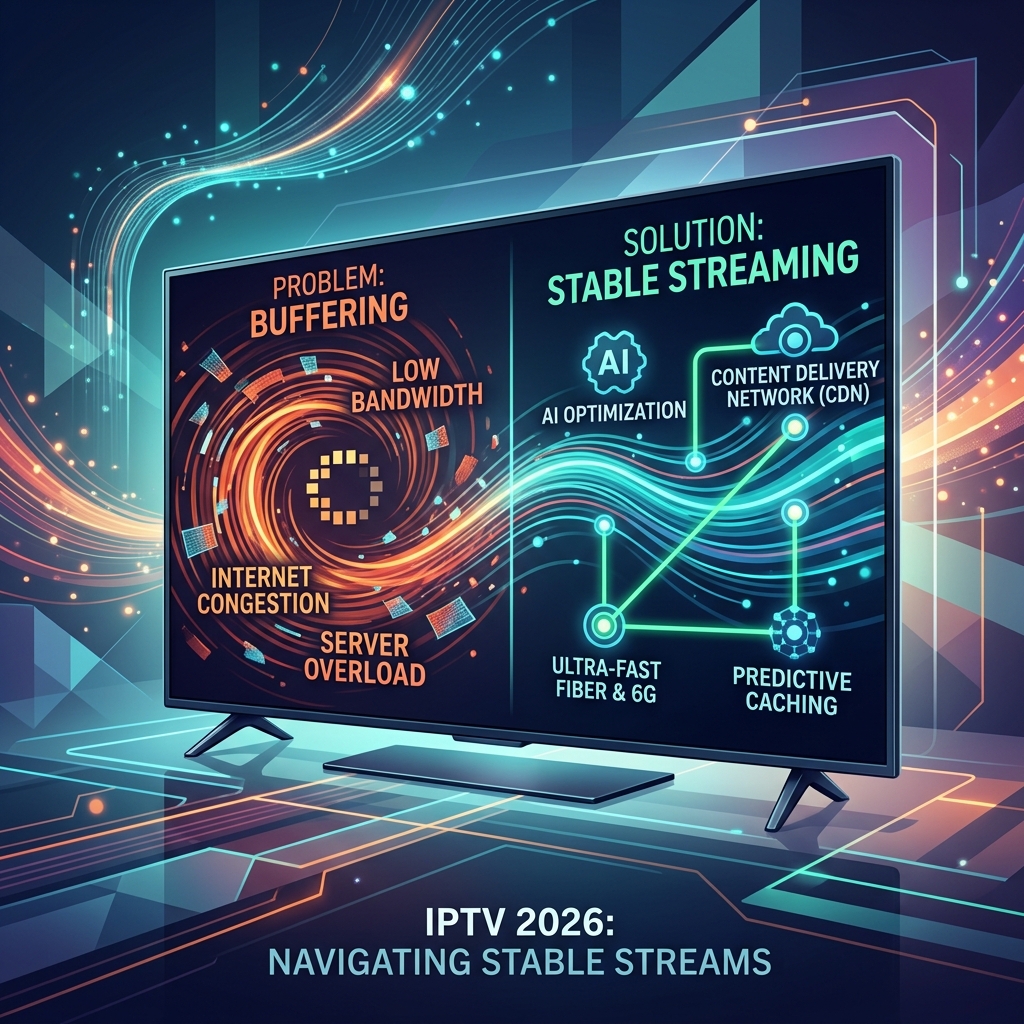
IPTV Buffering: 15 Causes and How to Fix It in 2026
IPTV buffering is one of the most common problems people experience while streaming live television and on-demand content.
A stream may play normally for several minutes and then pause, freeze, lower its quality, or repeatedly display a loading symbol.
The good news is that buffering does not always mean there is a problem with the IPTV service itself.
Buffering can be caused by your internet connection, Wi-Fi signal, router, streaming device, IPTV player, video quality, background network activity, or the individual stream.
In this guide, we will cover 15 common causes of IPTV buffering and explain what you can do to identify and fix each one.
Only use IPTV streams and services that you are authorized to access. If you are looking for a reliable provider, explore Smartiflix, the top Premium IPTV in USA, Europe & Canada.
What Is IPTV Buffering?
Buffering happens when your device cannot receive and process enough streaming data quickly enough to maintain continuous playback.
Your IPTV player temporarily stores some incoming data in memory so that playback can continue smoothly.
If data arrives too slowly or is interrupted, the available buffer can run out.
The video then pauses while the player waits for additional data.
This can happen occasionally during a temporary network fluctuation, but frequent buffering usually indicates that something needs to be investigated.
1. Slow or Unstable Internet Connection
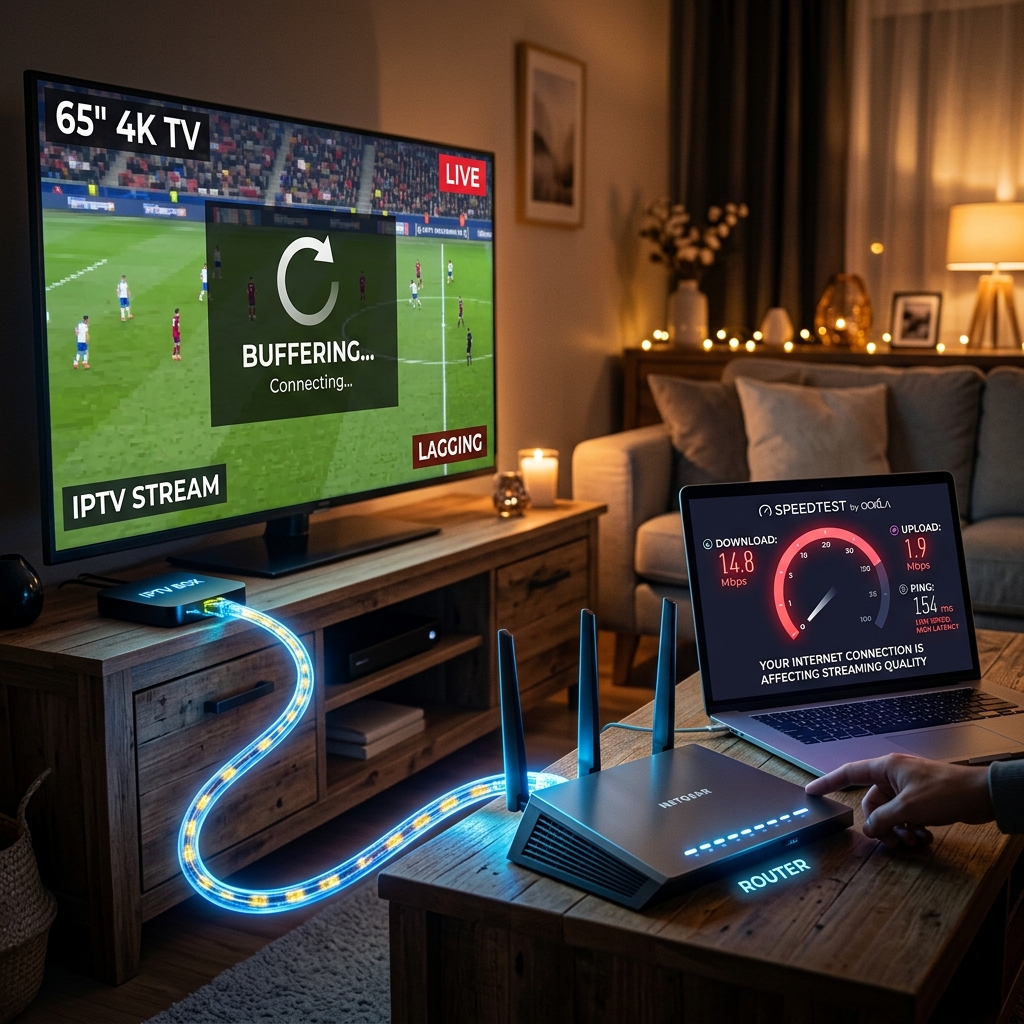 Internet connection affecting IPTV streaming quality
Your internet connection is one of the first things to check when IPTV keeps buffering.
A connection may have a high advertised download speed but still experience:
- Packet loss
- High latency
- Network congestion
- Temporary interruptions
- Unstable Wi-Fi
These issues can affect live streaming even when a basic speed test appears acceptable.
How to Fix It
Try:
- Running a speed test on the same device.
- Restarting your router.
- Disconnecting unnecessary devices.
- Testing another network.
- Using Ethernet if available.
Test IPTV again after making one change at a time.
2. Weak Wi-Fi Signal
Wi-Fi can become unreliable when the TV or streaming device is far away from the router.
Walls, floors, furniture, and other electronic devices can also affect wireless performance.
How to Fix It
Move the router closer to the streaming device if practical.
You can also:
- Use Ethernet.
- Move the device closer to the router.
- Reduce obstacles between the router and device.
- Use a suitable Wi-Fi band.
- Restart the router.
A wired Ethernet connection can be particularly useful for devices used for high-quality streaming, especially when using a premium IPTV service. for devices used for high-quality streaming.
3. Network Congestion
Even when your internet connection is fast, other devices may consume a significant amount of bandwidth.
Examples include:
- Game downloads
- Large file transfers
- Cloud backups
- Video calls
- Other streaming services
- Software updates
How to Fix It
Pause unnecessary downloads and updates while watching IPTV.
If several people are using the same connection, test IPTV during a quieter period.
If buffering becomes significantly better, network congestion may be part of the problem.
4. Weak or Poorly Positioned Wi-Fi Router
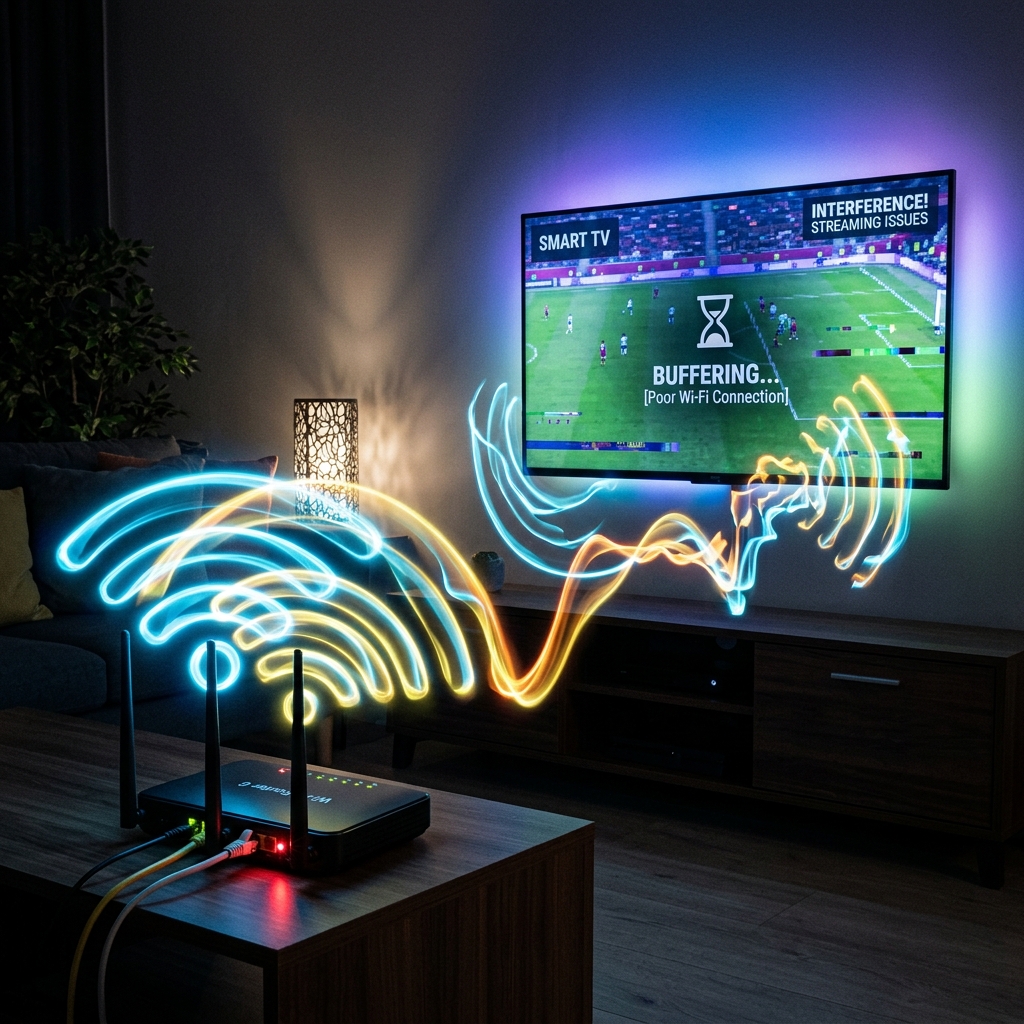 Wi-Fi signal affecting IPTV streaming
The router itself can contribute to streaming problems.
An old or poorly positioned router may struggle to provide consistent wireless coverage.
How to Fix It
Place the router in a more central, open location.
Avoid putting it inside:
- Cabinets
- Closed shelves
- Behind large appliances
- Areas surrounded by thick walls
If your home is large, a properly configured mesh Wi-Fi system may improve coverage.
5. Too Many Devices Using the Network
A household may have many connected devices simultaneously.
Phones, laptops, televisions, cameras, consoles, and smart devices can all consume network resources.
How to Fix It
Identify devices performing heavy network activity.
Pause unnecessary activity and test IPTV again.
If the problem disappears, the network may have been overloaded.
6. High Stream Quality
Higher-quality streams require more data.
For example, a 4K stream generally requires more bandwidth and device processing than a lower-resolution stream.
If your connection or device struggles with a high-bitrate stream, buffering may occur.
How to Fix It
If the player or service provides different quality options (like those found in Smartiflix plans), temporarily test a lower quality.
For example:
4K → Full HD → HD
If lower-quality playback is stable while 4K consistently buffers, the problem may involve available bandwidth, device performance, or stream bitrate.
7. 4K IPTV Streaming
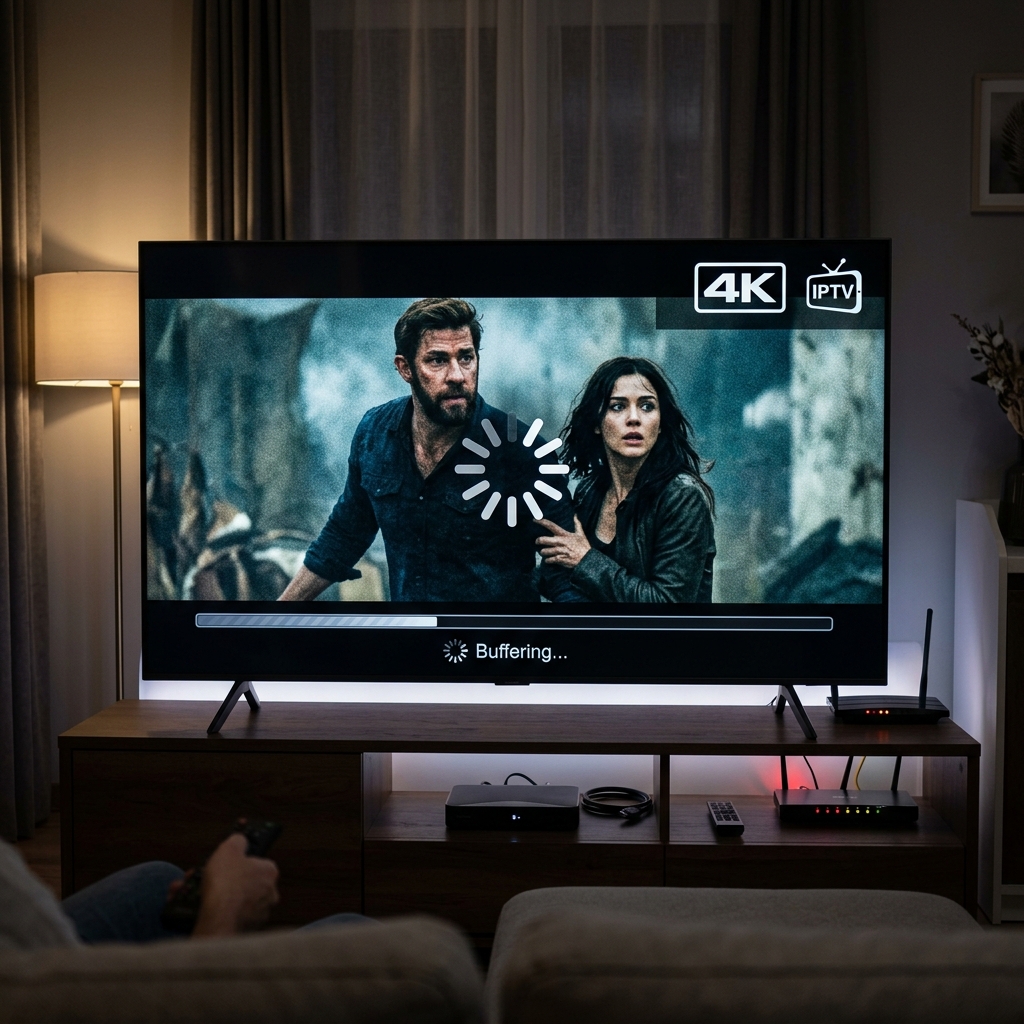 4K IPTV streaming and buffering
4K streaming can expose limitations that are not noticeable with HD content.
A device may handle normal HD playback perfectly but struggle with high-bitrate 4K streams.
Possible factors include:
- Internet bandwidth
- Wi-Fi stability
- Device hardware
- Video codec
- Stream bitrate
- IPTV player compatibility
How to Fix It
Test a Full HD stream.
If Full HD works normally while 4K buffers, compare the device specifications and network performance.
Avoid assuming that a high internet speed automatically guarantees smooth 4K playback.
8. Background Applications
Your streaming device may have applications running in the background.
These can consume:
- CPU resources
- RAM
- Network bandwidth
How to Fix It
Close unnecessary applications and restart the device.
On Android TV or similar devices, check which applications are running and remove unnecessary background activity where appropriate.
A restart can also clear temporary resource issues.
9. Device Performance Problems
Older or low-powered streaming devices may struggle with demanding IPTV streams.
Possible signs include:
- Slow menus
- Delayed remote response
- Applications crashing
- Video freezing
- Audio/video synchronization problems
How to Fix It
Restart the device and close unnecessary applications.
Also check for system and application updates.
If the device consistently struggles with high-quality streams despite a stable network, hardware limitations may be involved.
10. IPTV Player Problems
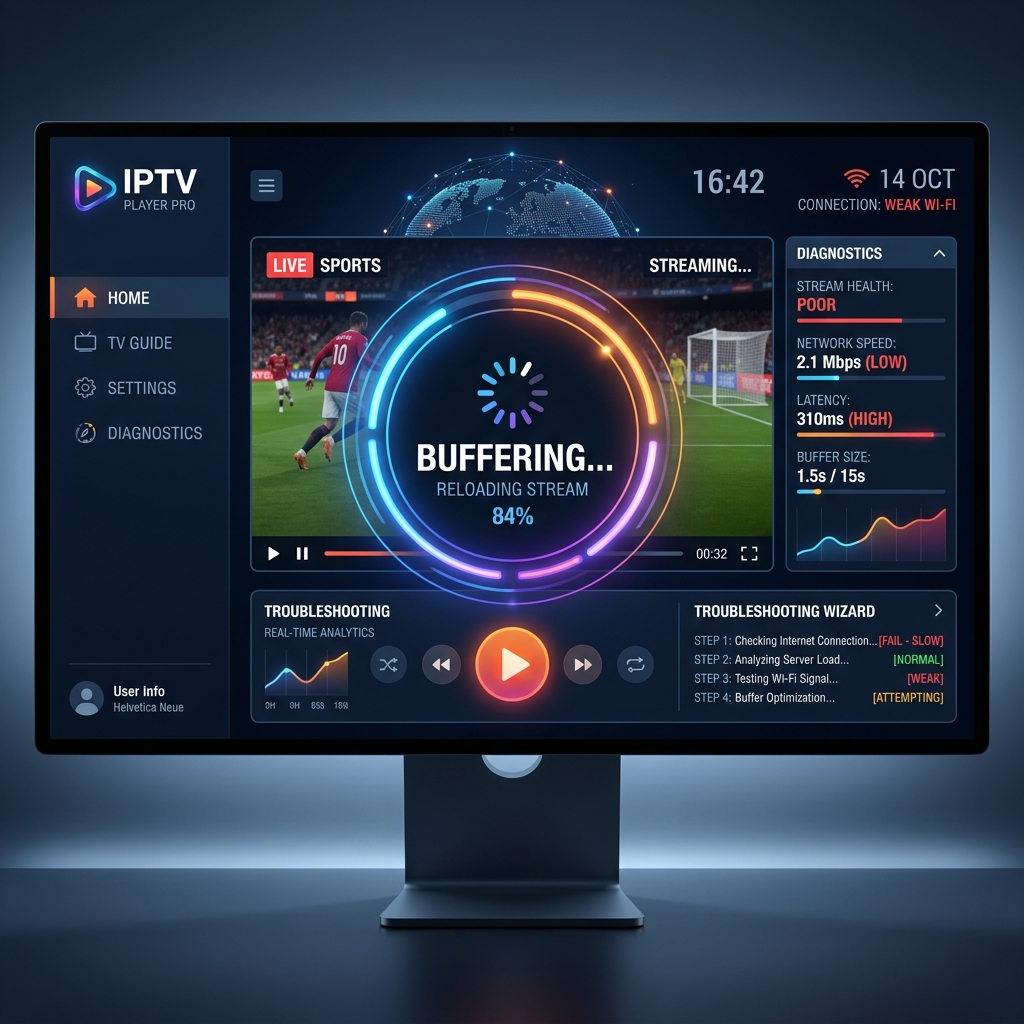 IPTV player buffering troubleshooting
The IPTV player itself can cause buffering.
Different players can handle:
- Video codecs
- Network streams
- Buffering
- Hardware acceleration
- Audio formats
differently.
How to Fix It
First:
- Restart the IPTV player.
- Update the application.
- Check its playback settings.
- Test another compatible player if available.
If the same stream works correctly in another player, the original application may be contributing to the problem.
11. Temporary Server-Side Problems
Sometimes the problem is not on your side.
The authorized streaming source may temporarily experience:
- High demand
- Maintenance
- Server overload
- Network problems
- Individual stream issues
How to Fix It
Test several channels.
If only one channel buffers while other channels work normally, the issue may be limited to that stream.
If many channels begin buffering simultaneously, investigate the service status or check if your IPTV channels are loading properly by reading our guide on IPTV Channels Not Loading. and your own network before changing your entire setup.
12. One Specific Channel Is Buffering
If most channels work correctly but one particular channel constantly buffers, the problem may be specific to that stream.
How to Fix It
Test:
- Another channel in the same category.
- A different quality level if available.
- Another compatible player.
- The same channel later.
If only one stream consistently fails, contact our support team if necessary.
13. Router or DNS Problems
Occasionally, network configuration can affect access to streaming services.
A router may have temporary problems or DNS resolution may behave unexpectedly.
How to Fix It
Start with simple steps:
- Restart the router.
- Restart the streaming device.
- Check for router firmware updates.
- Test another network.
Only change advanced DNS or network settings if you understand the consequences and have a reason to do so.
14. Outdated IPTV App or Device Software
Software updates can include compatibility fixes and performance improvements.
An outdated IPTV player or device operating system may behave differently from a current version.
How to Fix It
Check for official updates for:
- IPTV player
- Android TV
- Google TV
- Fire TV
- Smart TV firmware
After updating, restart the device and test playback again.
If buffering started immediately after an application update, check whether another official update is available and review the application's playback settings.
15. Incorrect or Excessive Playback Settings
Some IPTV players offer advanced settings for:
- Buffer size
- Hardware acceleration
- Video decoder
- Audio decoder
- Network playback
- External players
Incorrect settings can sometimes create playback problems.
How to Fix It
If buffering began after changing a player setting, restore the previous configuration.
If you are unsure which option is responsible, use the player's default settings and test again.
Change one setting at a time so you can identify what actually affects playback.
How to Fix IPTV Buffering Step by Step
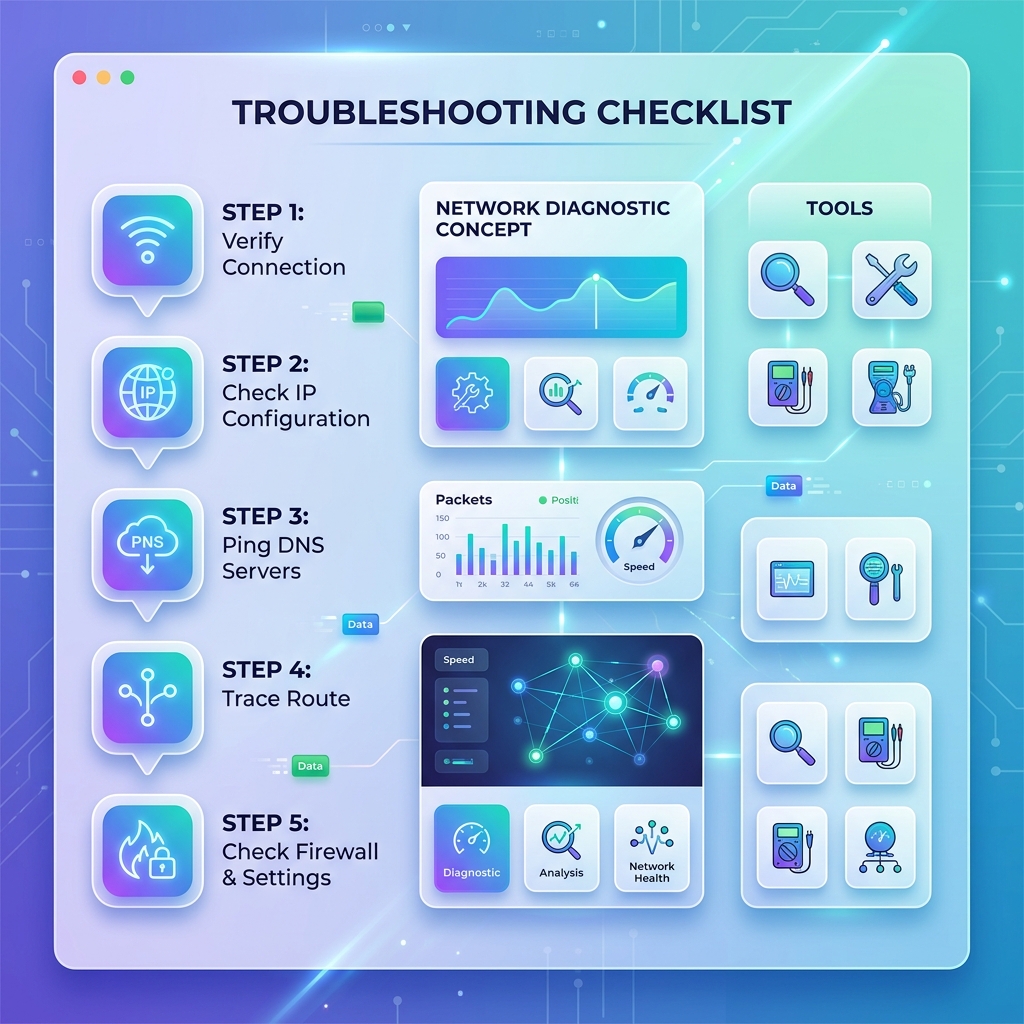 Steps to fix IPTV buffering problems
If you are trying to watch live sports with IPTV and do not know where to start, follow this troubleshooting order.
Step 1: Test Your Internet
Run a speed test on the same device.
Do not rely only on the speed reported by another device.
Step 2: Restart Your Router
Turn the router off, wait briefly, and restart it.
Then test IPTV again.
Step 3: Test Another Channel
If only one channel buffers, the stream itself may be responsible.
Step 4: Test Another Quality
Try HD or Full HD instead of 4K if available.
Step 5: Check Wi-Fi
Move closer to the router or use Ethernet.
Step 6: Stop Background Downloads
Pause large downloads, backups, and updates.
Step 7: Restart Your Device
A restart can resolve temporary memory and application problems.
Step 8: Update the IPTV Player
Install available official updates.
Step 9: Test Another Compatible Player
This helps determine whether the problem is application-specific.
Step 10: Test Another Network
If possible, compare the connection with another network.
Step 11: Check Multiple Channels
This helps determine whether the problem affects one stream or the entire service.
Step 12: Contact Authorized Support
If your network and device appear healthy and many streams remain affected, contact the Smartiflix support team.
IPTV Buffering on Smart TV
Smart TVs can experience buffering because of:
- Weak Wi-Fi
- Older hardware
- Limited memory
- Outdated applications
- Network congestion
Try connecting the TV through Ethernet if supported. For setup instructions, see our IPTV installation guides.
Also restart the TV and update its software and IPTV application.
IPTV Buffering on Firestick
If IPTV buffers on a Fire TV device (one of our supported devices), check:
- Wi-Fi signal
- Available device storage
- Background applications
- App updates
- Device temperature
- Stream quality
Restart the device and test a lower-quality stream.
IPTV Buffering on Android TV
On Android TV (fully compatible with Smartiflix IPTV), check:
- Network connection
- Application updates
- Device storage
- Running applications
- Decoder settings
- Wi-Fi signal
Restarting the device and IPTV application should be one of the first troubleshooting steps.
IPTV Buffering at Night
If IPTV only buffers during evening hours, network congestion may be worth investigating.
Your home network may be busy, or the broader network and streaming service may experience higher demand.
Compare playback:
- During the day
- During the evening
- On another network
If the problem appears only at a specific time, record the pattern before contacting support.
Does a Faster Internet Plan Always Fix IPTV Buffering?
Not necessarily.
A faster plan can help when bandwidth is the limiting factor, but buffering can also come from:
- Wi-Fi interference
- Packet loss
- Latency
- Device limitations
- Player problems
- Stream-side problems
- Network congestion
The goal is not simply to have the highest possible download speed. Learn more in our guide: What Internet Speed Do You Need for IPTV?
A stable connection is equally important, especially when you stream VOD in IPTV, watch live sports with IPTV, or test an IPTV service before subscribing.
IPTV Buffering Troubleshooting Table
| Problem | Possible Cause | What to Try |
|---|---|---|
| All channels buffer | Network/server issue | Test internet and multiple channels |
| One channel buffers | Individual stream issue | Test other channels |
| 4K buffers but HD works | High bitrate/device limits | Test Full HD |
| Buffering only on Wi-Fi | Weak wireless connection | Try Ethernet |
| Buffering at night | Network congestion | Test at another time |
| IPTV player freezes | App/device issue | Restart/update player |
| TV is slow | Device performance | Restart/close apps |
| Buffering after app update | Software/settings | Check settings/update |
| Multiple devices are streaming | Network congestion | Reduce network usage |
| Buffering continues everywhere | Service/network issue | Test another network |
Frequently Asked Questions
Conclusion
IPTV buffering can have many causes, and the fastest solution is to troubleshoot the problem systematically.
Start with the basics: test your internet connection, restart your router and device, check Wi-Fi strength, and test several channels.
Then investigate stream quality, IPTV player settings, device performance, software updates, and possible server-side problems.
If 4K buffers while HD works, examine bandwidth, stream bitrate, and device capabilities. If only one channel buffers, the problem may be specific to that stream.
Most importantly, avoid changing several settings at once. Test one variable at a time so you can identify the real cause.
With a stable network, compatible device, properly configured IPTV player, and authorized streaming source, you can significantly reduce many common IPTV buffering problems.