IPTV Channels Not Loading: Causes and Fixes
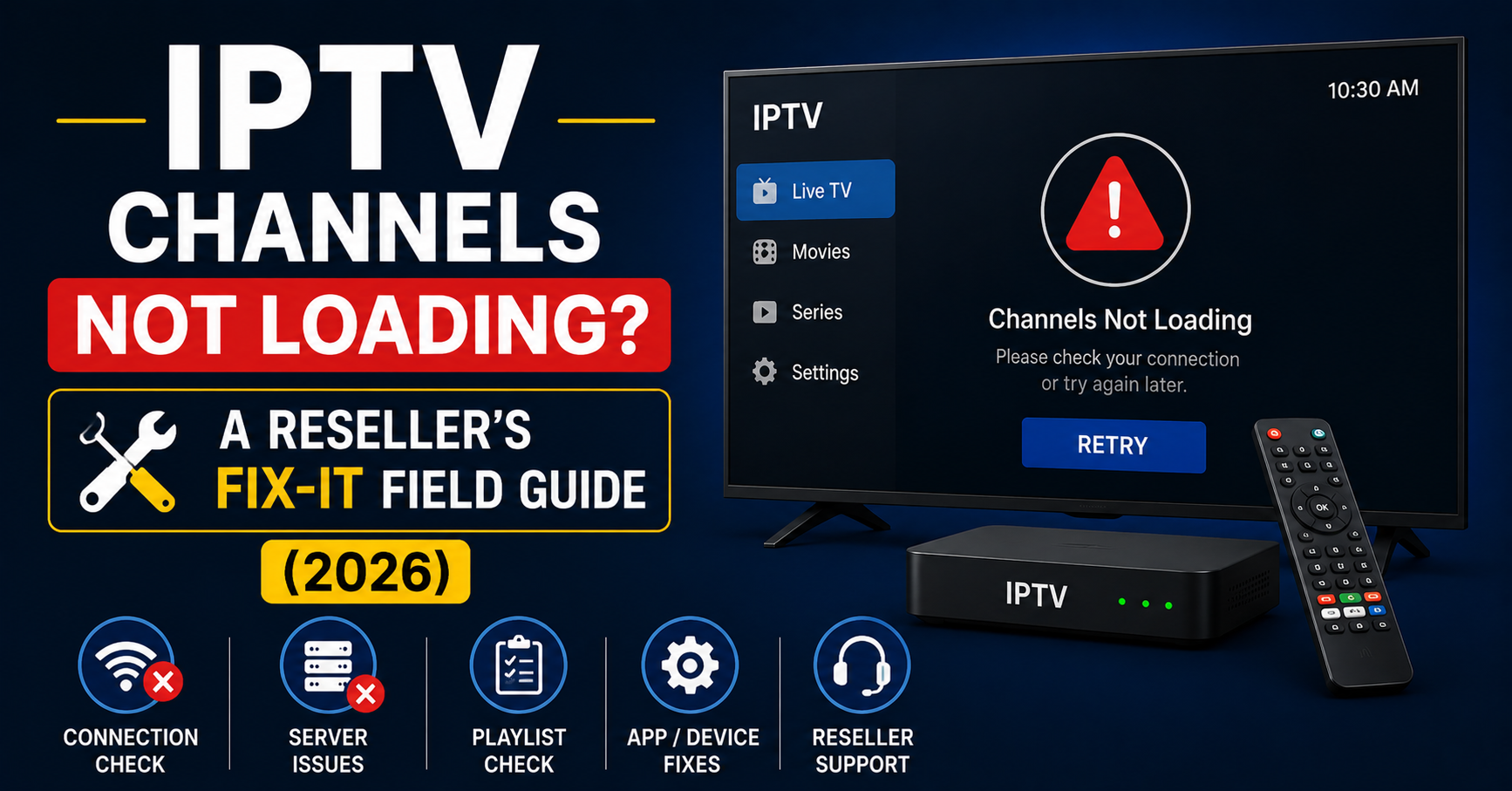
IPTV Channels Not Loading: Causes and Fixes
One of the most frustrating IPTV problems is opening your IPTV application and finding that the channels are not loading.
The application itself may open normally, but the channel list can remain empty, channels may stay stuck on a loading screen, or selecting a channel may result in a black screen.
There are several possible reasons for this.
The problem can come from your internet connection, IPTV application, playlist or login information, server availability, account status, device compatibility, or even a single channel stream.
The key is to determine whether all channels are affected or only specific channels.
In this guide, we explain the most common reasons IPTV channels may not load and the practical steps you can take to troubleshoot them.
Only use IPTV services, accounts, playlists, and streams that you are authorized to access, like those offered by Smartiflix, the top Premium IPTV in USA, Europe & Canada.
Why Are IPTV Channels Not Loading?
When channels fail to load, the problem usually falls into one of several categories:
- Internet connection problems
- Incorrect login information
- Incorrect server URL
- Expired or unavailable playlist
- IPTV server problems
- Application issues
- Device compatibility problems
- Outdated software
- Account restrictions
- Individual channel problems
Identifying the category first can save you from making unnecessary changes.
1. Check Your Internet Connection
 Internet connection causing IPTV channels not to load
A stable internet connection is essential for IPTV.
Even if your device shows that it is connected to Wi-Fi, the connection may still be unstable.
Check whether other online applications work normally on the same device.
What to Check
Look for:
- Slow loading
- Frequent disconnections
- Weak Wi-Fi
- High latency
- Network congestion
- Packet loss
Fix
Restart your router and reconnect your IPTV device.
If possible, test the device using Ethernet or another network.
If IPTV channels start loading normally on another connection, your original network may be contributing to the problem.
2. Check Your IPTV Username and Password
If you use login credentials to access your IPTV service, incorrect credentials can prevent the channel list from loading.
Double-check:
- Username
- Password
- Capitalization
- Numbers
- Extra spaces
If your authorized service (such as Smartiflix IPTV) recently changed your credentials, update them in the IPTV application.
Avoid manually changing credentials unless you have the correct information from the authorized source.
3. Check the IPTV Server URL
A server URL is another important part of an IPTV login.
Even with the correct username and password, an incorrect server address can prevent channels from loading.
Check that the server information matches the information provided by your authorized service.
Look for:
- Incorrect spelling
- Missing characters
- Incorrect port
- Outdated address
- Extra spaces
Do not modify server information randomly.
4. Check Whether Your Playlist Is Available
IPTV playlist and server troubleshooting
If you use an authorized M3U playlist, make sure it is still accessible.
A playlist may stop working because:
- The URL changed
- The playlist expired
- The account changed
- The server is unavailable
- The provider updated the playlist
If your playlist was supplied by an authorized service like Smartiflix platform, request the current playlist information if necessary.
5. Restart the IPTV Application
The IPTV application may simply have encountered a temporary error.
Completely close the application and open it again.
Then reload the channel list.
If the application has a refresh or reload option, use it.
A simple restart can sometimes restore channel loading without changing any settings.
6. Update the IPTV Player
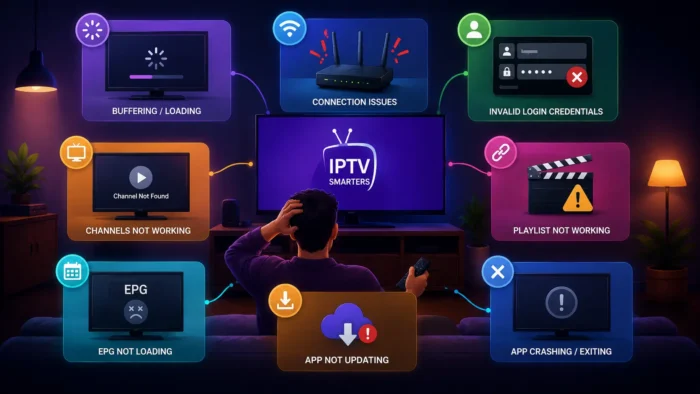 IPTV player troubleshooting when channels are not loading
An outdated IPTV player may experience compatibility problems.
Check the official application store for updates to ensure optimal IPTV channels performance.
Updates can include:
- Bug fixes
- Compatibility improvements
- Playback improvements
- Performance fixes
After updating, restart the application and test the channels again.
7. Clear the IPTV App Cache
On supported devices, temporary application data can occasionally become corrupted.
Clearing the cache may resolve certain loading problems.
On Android-based devices:
- Open Settings.
- Find Applications.
- Select your IPTV player.
- Open Storage.
- Clear the cache.
- Restart the application.
Be careful with "Clear Data" because it may remove saved accounts and settings.
8. Check Whether the IPTV Server Is Down
Sometimes the issue is not your device.
The authorized IPTV service may experience:
- Temporary maintenance
- Server overload
- Network problems
- Technical outages
If all channels suddenly stop loading while your internet works normally, check whether the service has an official status or support channel.
Avoid repeatedly changing your device configuration during a confirmed service outage.
9. Test Several Channels
This is one of the most useful troubleshooting steps.
Try several channels from different categories.
For example:
- News
- Sports
- Entertainment
- Movies
- International channels
If only one or two channels fail, the problem may be specific to those streams. For more details on this, see IPTV Not Working: 15 Things to Check First.
If every channel fails, investigate your connection, credentials, playlist, server, or application.
10. Check Your Account Status
An IPTV account may stop providing channel access if it is:
- Expired
- Disabled
- Restricted
- At a connection limit
- Changed by the authorized service
Check your account information (or review your IPTV pricing plan) to confirm it is active.
If you cannot determine the status, contact the Smartiflix support team through our official support channel.
11. Check Device Date and Time
Incorrect date or time settings can sometimes interfere with authentication and network services.
Make sure your device has:
- Correct date
- Correct time
- Correct time zone
- Automatic synchronization enabled when available
After correcting the settings, restart your IPTV application.
12. Check Your Device Storage
Streaming devices with very limited available storage can experience application and performance problems.
Check the available storage on your device.
Remove unnecessary applications or files if the device is almost full.
Then restart the device and test IPTV again.
13. Test Another Compatible IPTV Player
If channels do not load in one IPTV application, try another compatible and legitimate player if available.
This helps determine whether the issue is application-specific.
If the same authorized playlist or account works correctly in another player, the original application may be causing the problem.
14. Check Device Compatibility
Different devices have different hardware capabilities.
An older Smart TV or streaming device may have difficulty handling certain streams.
Possible symptoms include:
- Channels stuck loading
- Black screen
- Freezing
- Application crashes
- Audio/video problems
Try a lower-quality stream if available.
If HD works but 4K does not, the issue may involve device capabilities or stream requirements. If you frequently experience this, check our guide on IPTV Buffering: 15 Causes and How to Fix It in 2026.
15. Check Your Wi-Fi Signal
A weak Wi-Fi signal can prevent channels from loading correctly.
Move your streaming device closer to the router if possible.
You can also test:
- Ethernet
- A stronger Wi-Fi connection
- Another network
If the channel list loads correctly on another network, investigate your original Wi-Fi setup.
IPTV Channels Not Loading but the App Opens
If the IPTV application opens normally but the channel list does not appear, focus on:
- Internet connection
- Playlist or login information
- Server URL
- Account status
- Application cache
- Server availability
This situation is different from an application that crashes before opening.
IPTV Channels Loading but Not Playing
Sometimes the channel list appears correctly but selecting a channel produces:
- Black screen
- Loading symbol
- Playback error
- Immediate disconnection
In this situation, test several channels.
If only one channel fails, it may be an individual stream problem.
If all channels fail, investigate the player, device, network, account, and server.
IPTV Channels Disappeared
If your channels were previously visible but suddenly disappeared, check:
- Playlist refresh
- Account status
- Server information
- Application cache
- Application updates
If the playlist was recently changed by the authorized service, you may need updated login or playlist information.
IPTV Channels Not Loading on Smart TV
 Troubleshooting IPTV channels on Smart TV and streaming devices
On a Smart TV (a supported device), start with:
- Restarting the TV.
- Restarting the router.
- Checking Wi-Fi.
- Updating the IPTV application.
- Checking TV software.
- Verifying account and server information.
- Testing another compatible player.
If possible, connect the TV using Ethernet to determine whether Wi-Fi is responsible.
IPTV Channels Not Loading on Firestick
For Fire TV devices, check:
- Wi-Fi signal
- Device storage
- IPTV application updates
- Application cache
- Device software
- Account information
Restart the Fire TV device before making advanced changes.
IPTV Channels Not Loading on Android TV
On Android TV:
- Check the internet connection.
- Restart the device.
- Update the IPTV application.
- Clear the application cache.
- Verify login information.
- Verify the server information.
- Test another channel.
- Test another compatible player.
Quick IPTV Channel Troubleshooting Method
Use this order when you need to diagnose the problem quickly:
1. Test the Internet
Open another online application.
2. Test Several Channels
Determine whether the problem affects one channel or all channels.
3. Restart Everything
Restart the router, device, and IPTV application.
4. Check Login Information
Verify your username, password, and server URL.
5. Check Account Status
Make sure the authorized account is active.
6. Refresh the Playlist
Reload the playlist or account information if your player supports it.
7. Update the Player
Install official updates.
8. Test Another Player
Determine whether the problem is application-specific.
9. Test Another Network
This can reveal network-related problems.
10. Contact Authorized Support
If the problem continues, provide the support team with the relevant error information.
IPTV Channels Not Loading: Troubleshooting Table
| Problem | Likely Cause | Recommended Action |
|---|---|---|
| Channel list is empty | Playlist/login issue | Verify playlist or credentials |
| All channels fail | Network/server/account | Test connection and account |
| One channel fails | Individual stream | Test other channels |
| App opens but channels do not load | Server/playlist/app | Restart and verify settings |
| Black screen | Player/stream/device | Test another channel/player |
| Login error | Credentials | Verify username/password |
| Server error | Server URL/outage | Verify server information |
| Channels disappeared | Playlist/account | Refresh and check account |
| 4K channels fail | Device/stream limits | Test HD or Full HD |
| Works on another device | Device/app issue | Check compatibility |
| Works on another network | Network issue | Check Wi-Fi/router |
| App crashes | Software/device issue | Restart and update |
Frequently Asked Questions
Conclusion
When IPTV channels are not loading, the cause can be anything from a simple application problem to an unavailable server or account issue.
The most important first step is determining whether all channels are affected or only specific channels.
Then check your internet connection, login information, server URL, playlist, account status, IPTV player, device software, and Wi-Fi connection.
Avoid changing several settings at the same time. Test one potential cause at a time so you can identify what actually fixes the problem.
If the issue continues after you have checked your device and network, contact the authorized IPTV service's official support team and provide the relevant error information.
A systematic troubleshooting process makes it much easier to determine whether the problem is coming from your network, device, application, account, server, or individual channel.