IPTV Not Working: 15 Things to Check First
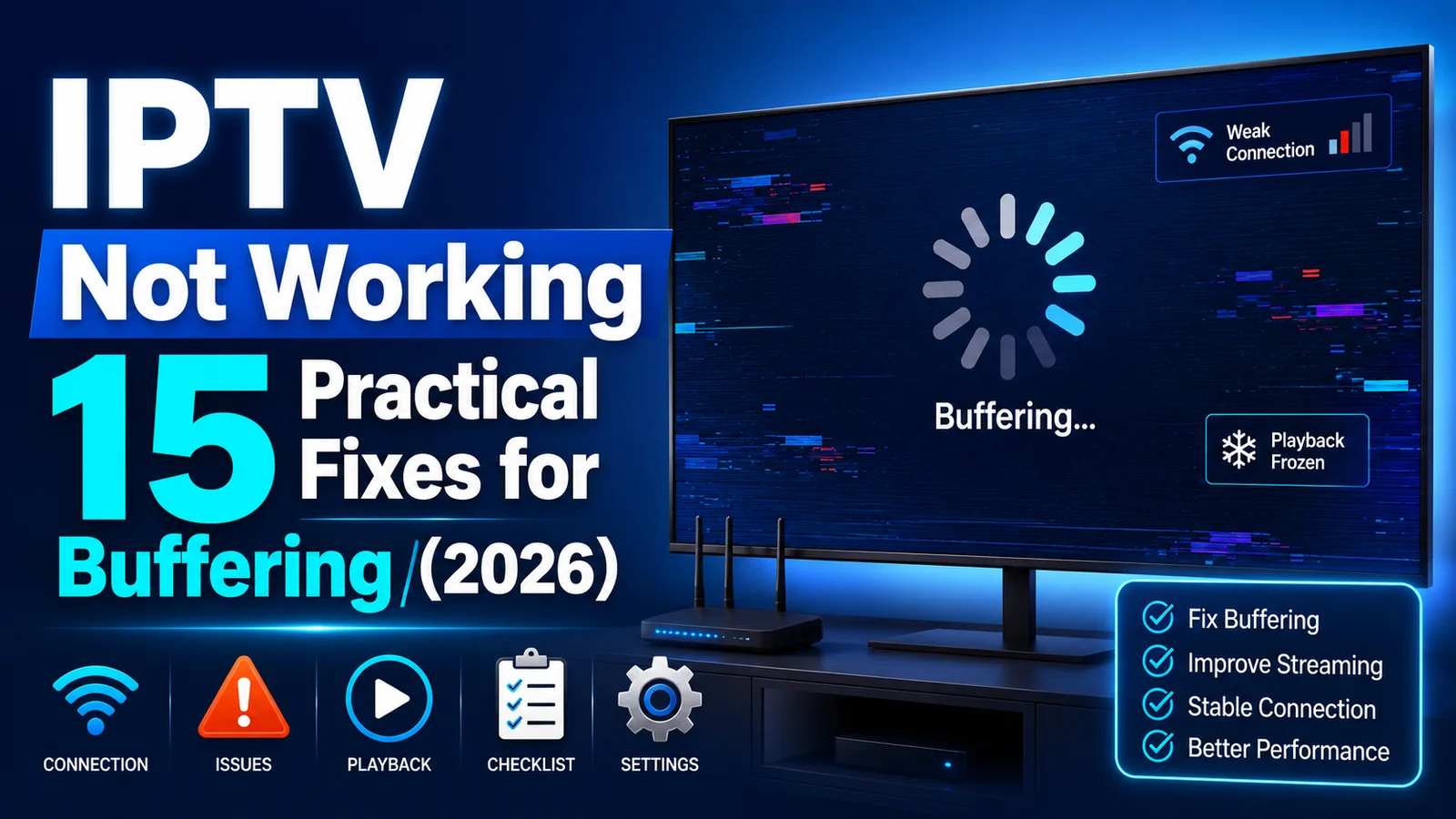
IPTV Not Working: 15 Things to Check First
When your IPTV service suddenly stops working, it can be difficult to know where the problem is coming from. If you are a Smartiflix-user experiencing issues with your Premium IPTV in USA, Europe & Canada, follow this guide.
The application may fail to open, channels may disappear, the player may show a connection error, or videos may refuse to start.
In some cases, the problem is caused by your internet connection or device. In other cases, the IPTV application, login information, server, account status, or individual stream may be responsible.
The best approach is to troubleshoot the problem systematically instead of immediately reinstalling everything or changing multiple settings.
In this guide, we cover 15 things to check when IPTV is not working, along with practical solutions for each situation.
Only use IPTV accounts, services, playlists, and streams that you are authorized to access, such as a subscription from Smartiflix IPTV.
1. Check Your Internet Connection
The first thing to check when IPTV is not working is your internet connection.
Your device may appear connected to Wi-Fi while still experiencing:
- Slow connectivity
- Packet loss
- High latency
- Temporary interruptions
- Network congestion
Try opening another online application on the same device.
If other services are also having problems, your network may be the cause.
How to Fix It
Try:
- Restarting your router.
- Reconnecting the device to Wi-Fi.
- Testing another website or application.
- Using Ethernet if available.
- Testing another network.
If everything else works normally, continue with the next checks.
2. Restart Your Router
A router can occasionally develop temporary connection problems.
Restarting it is one of the simplest troubleshooting steps.
Turn the router off, wait briefly, and turn it back on.
Wait until the internet connection is restored and then test IPTV again.
If IPTV starts working normally, the issue may have been a temporary network problem.
3. Check the IPTV Server Status
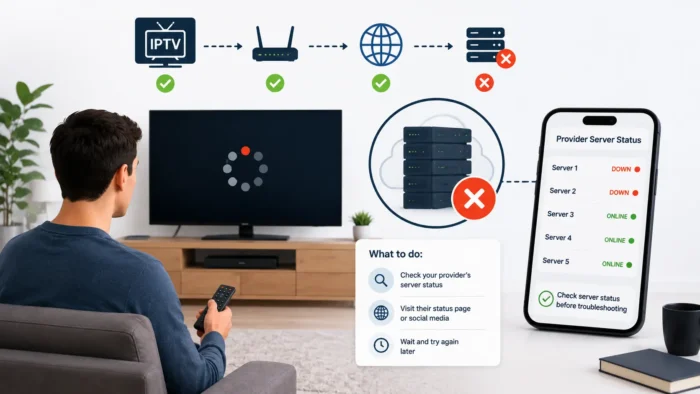 Checking IPTV server URL settings
Sometimes IPTV stops working because the authorized streaming server is temporarily unavailable.
Possible reasons include:
- Maintenance
- Server overload
- Network problems
- Temporary outages
- Infrastructure changes
If your authorized provider has an official status page or support channel, check it. (For example, you can always reach the Smartiflix contact page).
Avoid changing your device configuration if the server itself is temporarily unavailable.
4. Verify Your IPTV Username and Password
 Checking IPTV login credentials
If your IPTV application displays a login error, check your credentials carefully.
Look for:
- Missing characters
- Incorrect capitalization
- Extra spaces
- Incorrect numbers
- Old passwords
Copy the credentials directly from the authorized source whenever possible.
If the password was recently changed, make sure the IPTV player is not using an outdated saved password.
5. Check the IPTV Server URL
A correct username and password are not enough if the server URL is incorrect.
Verify the complete server address supplied by your authorized service when you purchased your IPTV pricing plan.
Check:
- Domain
- Protocol
- Port
- Path
- Spelling
Do not manually modify the URL unless the authorized provider instructs you to do so.
An outdated or incorrectly entered server address can prevent the IPTV application from connecting.
6. Check Whether Your Account Is Active
If IPTV worked previously but suddenly stopped, check the status of your authorized account. You may need to review your available plans if your subscription has expired.
Possible account-related causes include:
- Expiration
- Subscription changes
- Device restrictions
- Connection limits
- Account suspension
Check the account information provided by your service.
If there is an account issue, contact the Smartiflix support team through our official support channel.
7. Restart and Update Your IPTV Player
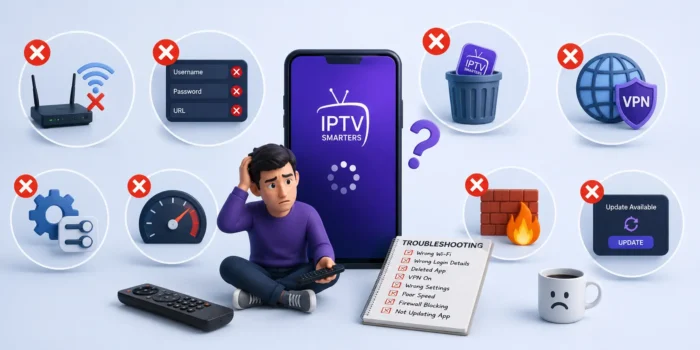 Updating an IPTV player when the service is not working
The IPTV application itself may have encountered a temporary problem.
Start by completely closing the application and reopening it.
If that does not help, check whether an official update is available.
Updates may include:
- Bug fixes
- Compatibility improvements
- Playback fixes
- Security improvements
After updating, restart the application and test again.
8. Clear the IPTV App Cache
Temporary application data can sometimes become corrupted or outdated.
On compatible Android devices, clearing the application cache can help resolve certain problems.
Before doing this, make sure you have your login information available. (If you are currently evaluating a new provider, read our guide on how to test an IPTV service before subscribing).
After clearing the cache:
- Open the IPTV application.
- Sign in again if necessary.
- Test the connection.
- Check whether channels load correctly.
Do not clear application data unless you understand that it may remove saved settings and accounts.
9. Check Your Device's Date and Time
Incorrect date, time, or time-zone settings can interfere with certain authentication and network processes.
Check that your device has:
- Correct date
- Correct time
- Correct time zone
- Automatic time synchronization enabled when available
After correcting the settings, restart the IPTV application.
10. Test Another IPTV Player
If IPTV does not work in one application, test another compatible IPTV player if you have access to one.
This can help determine whether the problem is caused by the application.
If the same authorized credentials and stream work in another player, the original player may have a configuration or compatibility problem.
Avoid installing modified or unofficial applications.
11. Check Your Wi-Fi Signal
If you are using Wi-Fi, check the signal strength near the IPTV device.
A weak wireless connection can cause connection failures and buffering. For more details on connection issues during playback, check our guide on IPTV Buffering: 15 Causes and How to Fix It in 2026 and What Internet Speed Do You Need for IPTV?.
Move the device closer to the router if possible.
Ethernet is another option when supported.
12. Check Your Device Software
An outdated operating system or device firmware can sometimes cause compatibility issues.
Check for official software updates on these supported devices:
- Smart TVs
- Android TV devices
- Google TV devices
- Fire TV devices
- Smartphones
- Computers
After updating the device, restart it and test IPTV again.
13. Test Another Channel
If the IPTV application opens normally but one channel does not play, the problem may be limited to that particular stream.
Test several other IPTV channels. If they all fail, see our guide on IPTV Channels Not Loading.
If most channels work and only one channel fails, avoid changing your entire setup immediately.
The issue may be specific to the individual stream.
If many channels fail simultaneously, continue with the other troubleshooting steps.
14. Check Device Compatibility and Performance
Not every device handles every IPTV stream in the same way.
Older devices may have difficulty with high-resolution or high-bitrate content.
Possible symptoms include:
- Video freezing
- Application crashes
- Delayed controls
- Black screen
- Audio/video synchronization issues
Check that your device and IPTV player support the stream format and quality you are trying to play.
If 4K content fails but HD works, test a lower resolution.
15. Contact Your Authorized IPTV Provider
If you have checked your network, credentials, device, IPTV player, and multiple channels and the problem continues, the issue may be outside your device.
Contact the authorized provider through its official support channel.
Provide useful information such as:
- Device model
- IPTV player name
- Error message
- Approximate time the problem started
- Whether all channels or only some channels are affected
- Whether other internet applications work normally
This information can help support identify the problem faster.
IPTV Not Working: Quick Troubleshooting Checklist
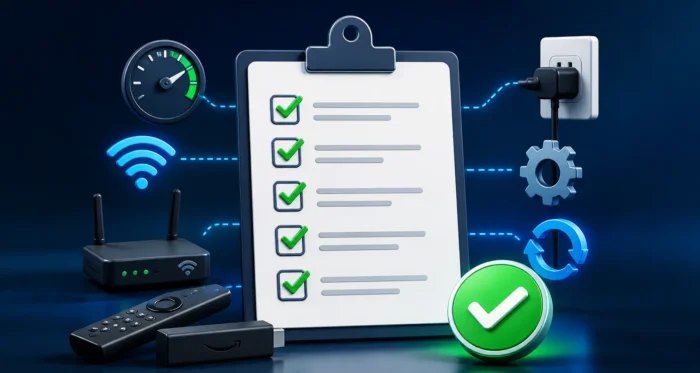 IPTV troubleshooting checklist
If you need a quick solution, follow these steps in order:
Step 1
Check your internet connection.
Step 2
Restart your router.
Step 3
Restart your IPTV device.
Step 4
Restart the IPTV application.
Step 5
Check your username and password.
Step 6
Verify the server URL.
Step 7
Check whether your authorized account is active.
Step 8
Test another channel.
Step 9
Check your Wi-Fi signal.
Step 10
Update the IPTV player.
Step 11
Clear the application cache if appropriate.
Step 12
Check device date and time.
Step 13
Test another compatible IPTV player.
Step 14
Test another network if available.
Step 15
Contact authorized support if the issue persists.
IPTV Not Working on Smart TV
If IPTV is not working on your Smart TV, start with the basics.
Check:
- Internet connection
- Wi-Fi signal
- IPTV application
- TV software
- Account status
- Server information
Restart the TV and router.
If the IPTV application is outdated, check for an official update.
If possible, test another compatible IPTV application to determine whether the issue is specific to the original player.
IPTV Not Working on Firestick
For Fire TV devices (fully compatible with Smartiflix service), check:
- Wi-Fi connection
- Device storage
- IPTV application updates
- Device software
- Application cache
- Account information
Restart the device before making advanced changes.
If the device is low on available storage, removing unnecessary applications may also improve general performance.
IPTV Not Working on Android TV
On Android TV, check:
- Network connection
- IPTV player
- App cache
- Device software
- Login information
- Server URL
Restart both the Android TV device and router before testing again.
IPTV Not Working but Internet Is Fine
If Netflix, YouTube, websites, and other online services work normally but IPTV does not, the problem may be specific to:
- IPTV player
- IPTV account
- Server URL
- Authorized streaming service
- Individual stream
Test another IPTV player and several channels.
If only IPTV is affected, focus your troubleshooting on the IPTV application, account, server, and stream rather than immediately replacing your internet connection.
IPTV App Opens but Channels Do Not Play
If the application opens but channels fail to play, check:
- Server URL
- Account status
- Playlist or login information
- Internet connection
- IPTV player compatibility
- Individual channel availability
Testing several channels is especially useful.
If every channel fails, investigate the account, server, or player.
If only one channel fails, the problem may be isolated to that stream.
IPTV Troubleshooting Table
| Problem | Possible Cause | What to Check |
|---|---|---|
| IPTV app will not open | App/device problem | Restart and update |
| Login failed | Incorrect credentials | Username and password |
| Server error | Incorrect/unavailable server | Verify server URL |
| All channels fail | Network/server/account | Test network and account |
| One channel fails | Individual stream | Test other channels |
| IPTV buffers | Network/device/stream | Check connection and quality |
| Black screen | Player/codec/stream | Test another player |
| App crashes | Software/device issue | Update/restart |
| Works on another device | Device/player issue | Check compatibility |
| Works on another network | Network issue | Check Wi-Fi/router |
| 4K fails but HD works | Device/bitrate | Test lower quality |
| EPG missing | EPG configuration | Check EPG settings |
Frequently Asked Questions
Conclusion
When IPTV is not working, the problem can originate from many different places.
The most common areas to investigate are your internet connection, router, IPTV player, login credentials, server URL, account status, device software, Wi-Fi signal, and individual channels.
The most effective approach is to troubleshoot systematically.
Start with simple checks before making advanced changes. Test one variable at a time, and determine whether the problem affects one channel, the entire application, one device, or your whole network.
If everything on your side appears to be working correctly but IPTV remains unavailable, contact the authorized service's official support team.
With a systematic troubleshooting process, you can usually identify whether the issue comes from your device, network, application, account, server, or individual stream.