How to Watch IPTV on Multiple TVs at Home: Setup, Connections & Best Practices in 2026
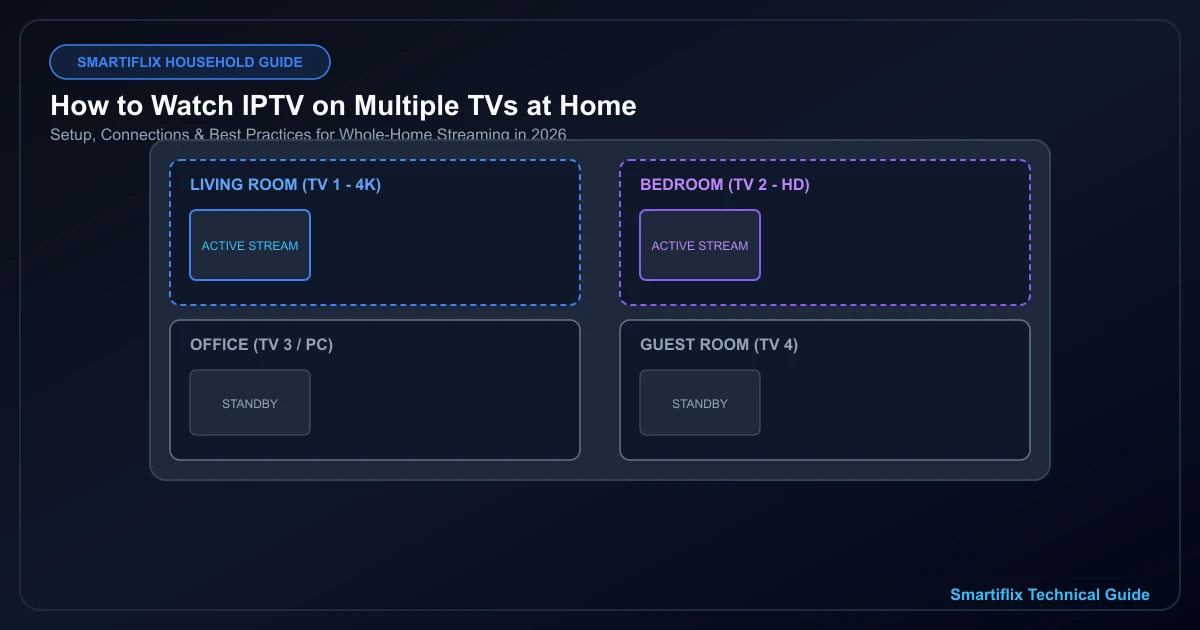
How to Watch IPTV on Multiple TVs at Home: Setup, Connections & Best Practices in 2026
Picture a typical evening in a modern household: one family member is in the living room watching a live high-definition sports broadcast, another is in the primary bedroom catching up on an on-demand drama series, while a third is in the home office following evening news updates on a desktop monitor or tablet.
In years past, outfitting a home for multi-room viewing meant running invasive coaxial cables through walls, paying heavy monthly equipment rental fees for multiple cable boxes, and dealing with rigid installation appointments. Today, modern internet protocol television (IPTV) offers extraordinary flexibility, enabling households to stream entertainment across multiple Smart TVs and streaming devices using existing home network infrastructure.
However, transitioning from a single-screen setup to a seamless, whole-home multi-TV streaming environment involves far more than simply downloading an application onto four different screens. The most critical factor that confuses new users is the fundamental distinction between devices where an IPTV account is configured and streams that can play simultaneously.
In this comprehensive guide, we will unpack everything you need to know about watching IPTV on multiple TVs. We will explain how simultaneous stream limits work, how to calculate your home's bandwidth requirements, how to choose between Wi-Fi and Ethernet connections, and how to configure a bulletproof multi-room streaming setup for your Smartiflix subscription.
Can You Watch IPTV on Multiple TVs?
The straightforward answer is yes—you can absolutely watch IPTV on multiple televisions throughout your home, provided your subscription terms allow concurrent streams, your streaming hardware is compatible, and your home network can handle the combined data load.
However, to avoid unexpected playback interruptions, every viewer must understand two distinct concepts:
1. Installed Devices
An installed device is any physical hardware—such as a Living Room Smart TV, a Bedroom Firestick, a Kitchen tablet, or an Office computer—where you have downloaded an IPTV application and entered your account access credentials. You can typically install your player app and credentials on as many compatible devices as you own.
2. Simultaneous Streams
A simultaneous stream (or concurrent connection) occurs when an installed device is actively decoding and playing a live channel or on-demand video feed at the exact same time as another device.
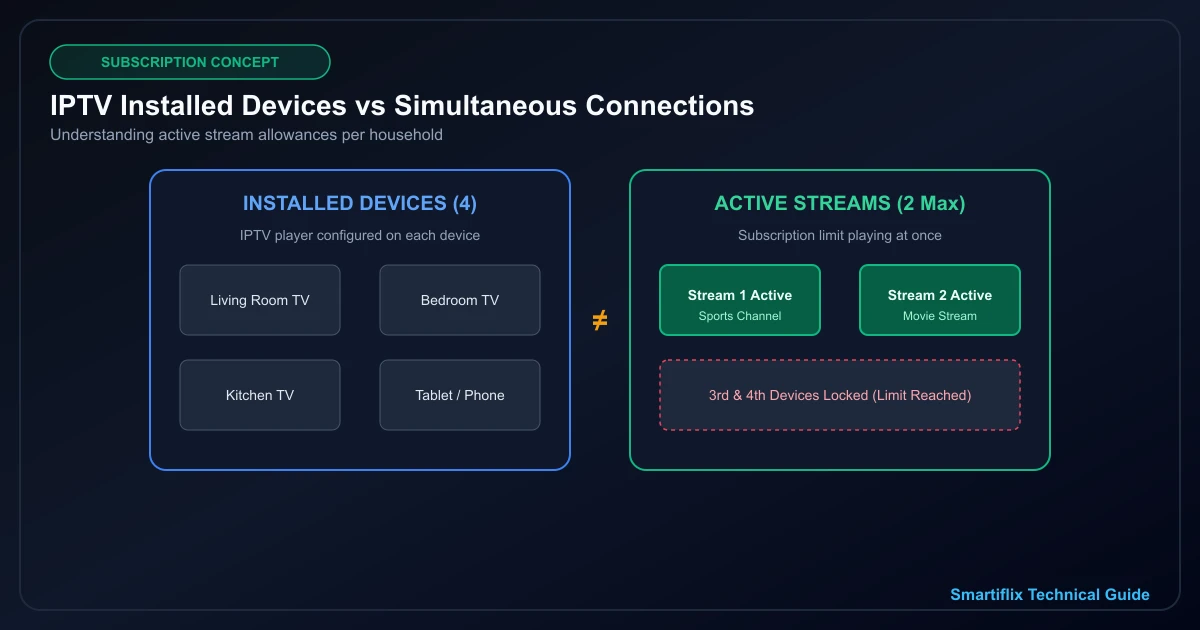 Difference between IPTV devices and simultaneous connections
For example, suppose you configure your IPTV account on four different Smart TVs across your home. If your subscription plan permits only one active stream, you can watch TV in any room you choose—but only one room can stream video at any given moment. If a second TV attempts to open a channel while the first TV is playing, the second stream will either fail to load or trigger a "Maximum Connections Reached" alert.
Subscription policies and connection rules vary widely across providers. Some services sell single-connection plans designed for individual users, while others offer multi-room plans that support two, three, or more concurrent streams under a single account.
IPTV Connections vs Devices: What's the Difference?
To make this distinction as clear as possible, let us break down the standard technical terminology used across the digital streaming industry:
| Term | Technical Meaning | Practical Household Example |
|---|---|---|
| Streaming Device | Physical hardware capable of running video applications. | Smart TV, Amazon Firestick, Apple TV, Android Box, Tablet, Smartphone. |
| App Installation | Configuring your IPTV player software and account info on a device. | Setting up Tivimate or IPTV Smarters on 4 TVs in your house. |
| Active Connection | A single active video data session between your device and the stream server. | Playing a live football channel on your Living Room TV. |
| Simultaneous Streams | Multiple active video sessions transmitting data at the exact same time. | Living Room TV playing sports while Bedroom TV streams a movie concurrently. |
| Subscription Limit | The maximum number of concurrent active streams allowed under your plan. | A plan that permits up to 2 active streams simultaneously. |
Understanding this difference prevents common setup mistakes. Having an app installed on five devices does not automatically mean five people can watch different shows at once unless your subscription explicitly authorizes five concurrent streams.
How Many IPTV Connections Does Your Home Need?
When planning a multi-room IPTV setup, your connection requirement should be calculated based on maximum simultaneous viewing demand, rather than the raw number of television sets mounted on your walls.
Let us evaluate common household scenarios:
One TV Active (Single Viewer or Shared Viewing)
If you live alone or if your household always watches television together in the living room, a single-stream plan is typically sufficient. You can still install your account on a bedroom TV or mobile phone for convenience, provided you stop playback on one screen before turning on another.
Two TVs Active Simultaneously (Couples or Small Families)
If one person frequently watches sports in the living room while another watches news or drama in the bedroom, your household requires at least two simultaneous streams. This allows both screens to operate independently without channel conflicts.
Three TVs Active Simultaneously (Busy Family Households)
In households with parents and children, it is common for three screens to run concurrently during evening peak hours—for instance, live sports in the living room, prime-time television in the main bedroom, and children's programming in a playroom. This setup demands a subscription permitting three concurrent connections.
Four or More TVs (Large Households or Multi-Generational Homes)
For large homes with four or more televisions, evaluate how often all screens will actually run at the exact same time. If four TVs are mounted across the house but no more than two are ever on simultaneously, a two-stream allowance is sufficient. However, if four family members routinely stream different channels concurrently, you must select a plan designed for four simultaneous connections.
To evaluate available options for your household, check our current Smartiflix subscription plans.
What You Need to Watch IPTV on Multiple TVs
To establish a smooth, buffer-free multi-screen environment, ensure your home has the following essential components in place:
- Compatible TVs or Streaming Hardware: Modern Smart TVs (Samsung Tizen, LG webOS, Android TV) or external streaming devices (Firestick 4K, Apple TV, Nvidia Shield).
- Compatible IPTV Player Applications: A reliable, legitimate player app installed on each display device.
- Appropriate Subscription Allowance: Account terms that permit the exact number of concurrent streams your family intends to use.
- Sustained Internet Bandwidth: An internet connection with sufficient speed and overhead to carry multiple high-bitrate video streams concurrently.
- Optimized Home Network: A robust dual-band Wi-Fi router or direct wired Ethernet cabling to prevent wireless network congestion.
- Account Access Details: Valid server credentials provided by your legitimate service operator.
- Up-to-Date Hardware Firmware: Current operating system and application updates on all streaming devices.
The Best Multi-TV IPTV Setup for a Home
There are three primary hardware methods for deploying IPTV across multiple devices in a residential home. Each approach offers unique advantages depending on your existing equipment.
1. Smart TV Native Applications
If your home features recent Smart TVs powered by Android TV, Google TV, Samsung Tizen, or LG webOS, you can install compatible IPTV player software directly from the TV's official application store.
- Advantages: Clean, single-remote operation; no extra cables or external power bricks required.
- Considerations: Processing power and app availability vary between budget and flagship TV models. Older Smart TVs may suffer from sluggish menu navigation.
2. Streaming Sticks (e.g., Amazon Firestick 4K, Chromecast with Google TV)
Plugging a compact streaming stick into an HDMI port on each television is one of the most popular ways to standardize multi-room playback.
- Advantages: Delivers identical processing speed, interface layout, and remote control experience across every TV in the house regardless of the TV's brand or age.
- Considerations: Requires an open HDMI port and access to a power outlet behind each television.
3. Dedicated Android / Google TV Streaming Boxes
High-performance streaming boxes—such as the Nvidia Shield TV or Apple TV 4K—provide top-tier processing power, superior Wi-Fi antennas, and gigabit Ethernet ports.
- Advantages: Exceptional decoding efficiency, instant channel switching, and fluid multi-tasking for high-bitrate 4K content.
- Considerations: Higher initial hardware investment per room compared to standard streaming sticks.
For a complete breakdown of supported equipment, visit our guide on supported streaming devices.
How to Set Up IPTV on Multiple TVs
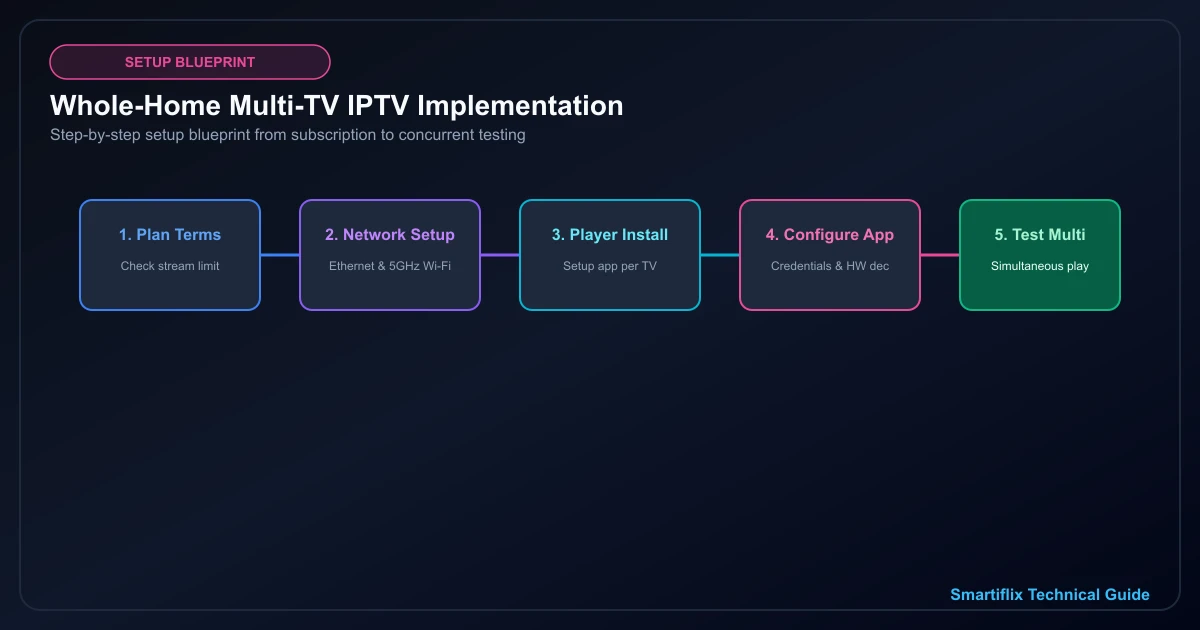
Setting up an IPTV home setup across multiple screens is straightforward when you follow a structured, room-by-room implementation process:
 Whole-home IPTV setup with multiple streaming devices
Step 1 — Verify Subscription & Stream Allowance
Before configuring devices, review your service terms to confirm how many simultaneous connections your account supports. Ensure your account credentials are active and ready for entry.
Step 2 — Connect Hardware to Network & Power
Mount your streaming devices or Smart TVs in their respective rooms (Living Room, Bedroom, Office, etc.). Connect each device to power and join your home network via 5GHz Wi-Fi or wired Ethernet.
Step 3 — Install Player Software on Device #1
Open the official app store on your primary television (e.g., Living Room TV) and download your preferred compatible IPTV player application.
Step 4 — Input Account Credentials
Open the player app and enter your playlist URL or login credentials provided by your service operator. Verify that channels, categories, and EPG program guides load cleanly.
Step 5 — Configure Video & Decoder Settings
Navigate to the application settings menu. Set video decoding to Hardware Decoding (HW/HW+), select your preferred aspect ratio ("Fit to Screen"), and configure buffer length (e.g., 5 seconds) for stable playback.
Step 6 — Test Primary Stream Playback
Select a live channel or on-demand movie on Device #1 to confirm smooth video delivery, crisp audio, and instant responsiveness.
Step 7 — Repeat Installation for Remaining TVs
Move to your second, third, and fourth televisions. Install the player software and enter your credentials on each device individually.
Step 8 — Perform Concurrent Stream Testing
Turn on the maximum number of permitted screens simultaneously (e.g., start a live stream on TV #1 and another on TV #2). Confirm that both screens play smoothly without causing connection drops or buffering errors on either device.
How Much Internet Speed Do You Need for Multiple IPTV TVs?
One of the most frequent questions from homeowners is how much internet speed is required to power a multi-TV streaming environment.
While a single High Definition (1080p) stream generally consumes between 8 and 15 Mbps of bandwidth, total bandwidth demand scales directly as simultaneous streams increase.
Consider how bandwidth accumulates across different multi-screen household scenarios:
- 1 Screen (1080p HD): ~15 Mbps required. A baseline 30–50 Mbps internet connection provides comfortable headroom.
- 2 Screens (1080p HD): ~30 Mbps total streaming traffic. Recommended connection: 50–100 Mbps.
- 2 Screens (4K Ultra HD): ~50–60 Mbps total streaming traffic. Recommended connection: 100+ Mbps.
- 4 Screens (Mixed HD & 4K): ~80–100 Mbps total streaming traffic. Recommended connection: 200+ Mbps.
Crucially, sustained network stability is far more important than raw peak download speed. If your internet plan offers 500 Mbps download speed but suffers from frequent latency spikes, packet loss, or local Wi-Fi congestion, your streams may buffer despite the high speed rating.
Always leave ample internet headroom for other household activities—such as video calls, online gaming, and background smartphone updates—to prevent bandwidth starvation. For an in-depth speed analysis, read What Internet Speed Do You Need for IPTV?.
Wi-Fi vs Ethernet for Multiple TVs
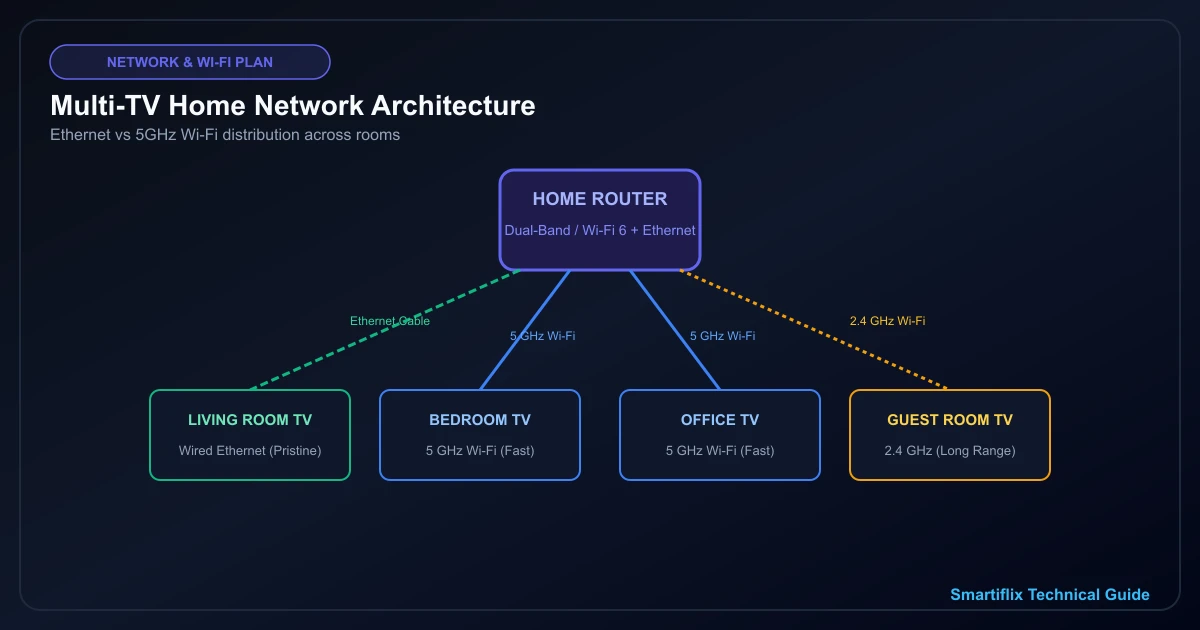
When running multi-room IPTV, choosing the right connection type for each television set can mean the difference between flawless playback and frustrating buffering.
 Home network connecting multiple TVs for IPTV streaming
Wired Ethernet Connections
Connecting a television directly to your router or network switch using an Ethernet cable (Cat 5e, Cat 6, or Cat 7) provides the ultimate streaming experience.
- Pros: Completely immune to wireless interference, wall obstruction, or radio frequency noise; delivers rock-solid sustained bandwidth; lowest possible latency.
- Best Used For: Your primary 4K Living Room TV, high-bitrate sports viewing, or televisions located far from your wireless router.
5 GHz Wi-Fi Connections
The 5 GHz wireless frequency band offers high data throughput, making it capable of handling HD and 4K streams smoothly.
- Pros: High transmission speeds; no physical cables required across rooms.
- Limitations: Shorter effective range than 2.4 GHz; radio signals struggle to penetrate thick concrete or brick walls.
- Best Used For: Televisions located in the same room or adjacent rooms to the wireless router.
2.4 GHz Wi-Fi Connections
The older 2.4 GHz wireless frequency band provides superior wall penetration and extended range.
- Pros: Reaches distant bedrooms or basement areas where 5 GHz signals cannot travel.
- Limitations: Highly susceptible to interference from neighboring Wi-Fi networks, Bluetooth devices, and household appliances; lower maximum throughput.
- Best Used For: Standard-definition or lower-bitrate HD streams on distant screens where physical cabling is impossible.
Where possible, use wired Ethernet for your main viewing screens and reserved 5 GHz Wi-Fi for secondary bedroom TVs.
How to Plan Your Home Network for Multiple TVs
When multiple screens stream video simultaneously, your home wireless router becomes the central traffic controller. If your router is underpowered or poorly placed, it will bottleneck video delivery regardless of your internet package speed.
Follow these proven home network planning guidelines:
- Centralize Router Placement: Position your main wireless router in a central, elevated location within your home, away from dense concrete walls, metal cabinets, and large appliances.
- Deploy Mesh Wi-Fi for Multi-Story Homes: In multi-story houses or large floor plans, standard single routers struggle to provide strong coverage to distant bedrooms. Installing a Mesh Wi-Fi System (such as eero, Google Nest Wi-Fi, or Orbi) creates seamless high-speed wireless coverage in every room.
- Use Powerline or MoCA Adapters: If running physical Ethernet cables through walls is impractical, consider Powerline Adapters (which transmit network data through your home's electrical wiring) or MoCA Adapters (which utilize existing coaxial TV outlets) to bring wired stability to distant TVs.
- Separate Guest & Smart Traffic: Keep smart home sensors or guest users on a separate guest network band to keep your primary 5 GHz band clear for television streaming traffic.
Experience Premium IPTV Streaming in 4K
Get instant access to live channels, movies, and sports in crystal-clear 4K & HD. Watch without interruptions.
How to Watch IPTV on Two TVs at the Same Time
To illustrate how a multi-TV setup operates in practice, let us examine a typical two-TV household configuration:
Room 1 — Living Room
- Hardware: 65-inch 4K Smart TV equipped with a Firestick 4K Max.
- Network: Connected via a direct Ethernet cable to the main router.
- Usage: Live 4K sports broadcasts and evening family movies.
Room 2 — Primary Bedroom
- Hardware: 43-inch HD Smart TV running a native IPTV player app.
- Network: Connected via the 5 GHz Wi-Fi band.
- Usage: Evening news broadcasts and on-demand TV series.
Stream Management
With a subscription plan supporting two simultaneous connections, both devices can log in, browse channels, and stream completely different content concurrently. Because the Living Room TV uses wired Ethernet and the Bedroom TV uses 5 GHz Wi-Fi, neither screen interferes with the other's network performance.
How to Watch IPTV on Three or Four TVs
When scaling up to a three or four-TV household, systematic device naming and network management become essential.
Consider a four-room setup:
- TV #1 (Living Room): 4K Stream — Wired Ethernet Connection.
- TV #2 (Primary Bedroom): HD Stream — 5 GHz Wi-Fi Connection.
- TV #3 (Home Office): HD Stream — 5 GHz Wi-Fi Connection.
- TV #4 (Guest Room): HD Stream — 2.4 GHz Wi-Fi / Mesh Node.
Key Operational Rules for 3-4 TVs:
- Assign Room Names in App Settings: In your player settings, give each device a clear label (e.g., "Living Room TV," "Office TV"). This helps identify active sessions if connection limits are reached.
- Audit Concurrent Habits: If four TVs exist in the home but only two people live there, a two-connection plan remains fully sufficient. Only pay for four connections if three or four screens will genuinely be active at the same time.
- Monitor Total Router Load: Ensure your router has a multi-core processor capable of handling multiple concurrent video streams alongside mobile devices and laptops.
Common Multi-TV IPTV Problems & Troubleshooting
Even with careful planning, multi-screen streaming environments can occasionally encounter technical glitches. Here is how to diagnose and resolve the four most common issues:
1. "Maximum Connections Reached" Error
- Symptom: Opening a channel on TV #2 displays an error message stating your connection limit has been exceeded.
- Cause: Your subscription stream limit is active, and another device in the house is currently playing a stream (or a background stream was left running).
- Fix: Completely exit or force-close the IPTV app on unused screens. Simply turning off the TV screen does not always stop an active background video stream. Always press "Back" or "Stop" before closing the app.
2. One TV Buffers While Others Play Flawlessly
- Symptom: The Living Room TV plays crystal-clear video, but the Bedroom TV stutters and buffers continuously.
- Cause: Localized wireless signal weakness, distance from the router, wall obstruction, or software decoding issues on the affected TV.
- Fix: Move the affected TV closer to a Mesh Wi-Fi node, switch the connection from 2.4 GHz to 5 GHz, or test an Ethernet connection. Verify that Hardware Decoding (HW) is enabled in the player app settings.
3. All TVs Buffer Simultaneously
- Symptom: Every television in the house experiences stuttering, freezing, or quality drops at the exact same time.
- Cause: Home internet connection congestion, ISP bandwidth throttling, router overload, or server-side broadcast disruption.
- Fix: Restart your home router and modem. Test your overall household download speed on a smartphone. If general internet performance is normal, consult our guide on IPTV Buffering: 15 Causes and How to Fix It.
4. Authentication or Login Failure on One TV
- Symptom: IPTV works fine on one screen, but entering credentials on a new TV yields an "Authentication Failed" error.
- Cause: Typo in playlist URL/username/password, device clock out of sync, or application incompatibility.
- Fix: Double-check credential spelling carefully (case-sensitive). Ensure the TV's system date and time are set to update automatically over the network.
Best Practices for Multi-Room IPTV
Follow these ten technical best practices to maintain a rock-solid, multi-screen streaming environment:
- Calculate Concurrent Needs: Purchase subscription allowances based on simultaneous viewers, not total wall-mounted TVs.
- Standardize Player Apps: Use the same compatible IPTV application across all household devices for a consistent interface and user experience.
- Always Stop Playback Before Exiting: Train family members to press "Stop" or exit to the main app menu before turning off their TV set.
- Prioritize Wired Ethernet for 4K Screens: Use physical Ethernet cabling for primary high-bitrate screens whenever possible.
- Enable Hardware Acceleration: Ensure Hardware Decoding (HW or HW+) is turned on in every device's app settings.
- Deploy Mesh Wi-Fi Coverage: Use a modern Mesh network to eliminate dead zones in distant bedrooms or basements.
- Name Each Device Clearly: Label device profiles in app settings for easy account administration.
- Keep Device Firmware Updated: Regularly update your Smart TV operating system, streaming sticks, and player apps.
- Maintain Reserve Bandwidth: Ensure your home internet speed leaves at least 30-50% headroom above total streaming traffic.
- Secure Your Account Credentials: Never share your private login details outside your household to avoid unexpected connection locks.
Can You Use One IPTV Subscription on Multiple TVs?
Whether a single IPTV subscription can be used across multiple televisions depends entirely on the terms and connection allowances of your specific plan.
- Single-Connection Plans: Allow you to register multiple devices, but only one screen can stream at a time.
- Multi-Connection Plans: Explicitly permit two, three, or more concurrent active streams under a single account username.
Always check your service plan terms to confirm how many concurrent connections are authorized before attempting multi-screen playback. For detailed setup assistance, explore our comprehensive IPTV installation guide.
Multi-TV IPTV Setup Checklist
Use this practical checklist before launching your whole-home streaming setup:
- Subscription Verification: Confirmed permitted simultaneous stream count with provider.
- Hardware Preparation: All TVs outfitted with compatible Smart TV apps or 4K streaming sticks.
- Network Audit: Router centralized; 5GHz Wi-Fi active or Ethernet cables connected to key screens.
- Bandwidth Test: Internet speed verified to provide sufficient headroom for all active streams.
- App Installation: IPTV player downloaded and updated on each television.
- Account Configuration: Credentials correctly entered and verified room by room.
- Video Tuning: Hardware decoding (HW/HW+) enabled; buffer length set for stability.
- Simultaneous Test: All permitted screens started concurrently to verify buffer-free playback.
Ready for Superior Picture Quality?
Enjoy buffer-free streaming with our high-bitrate servers and premium bandwidth. Instant setup on all devices.
Frequently Asked Questions
Conclusion
Building a high-performance multi-TV streaming environment is one of the most rewarding upgrades you can make to your home entertainment system. By replacing rigid cable box rentals with flexible internet protocol television, your family can enjoy high-definition sports, live news, and on-demand movies in any room at any time.
The key to a flawless multi-screen experience comes down to mastering three essential pillars:
Subscription Allowance + Compatible Devices + Robust Home Network
Remember that the total number of televisions mounted in your home matters far less than the number of screens actively streaming at the exact same moment. By auditing your family's viewing habits, equipping key screens with Ethernet or 5GHz Wi-Fi, and enabling hardware acceleration, you can eliminate buffering and enjoy true reference-grade entertainment across your entire house.
If you are ready to elevate your home entertainment, explore Smartiflix pricing plans today and discover how our high-bandwidth infrastructure powers seamless multi-screen viewing for your whole family!