IPTV Picture Quality Explained: Why Some 4K Streams Look Better Than Others in 2026
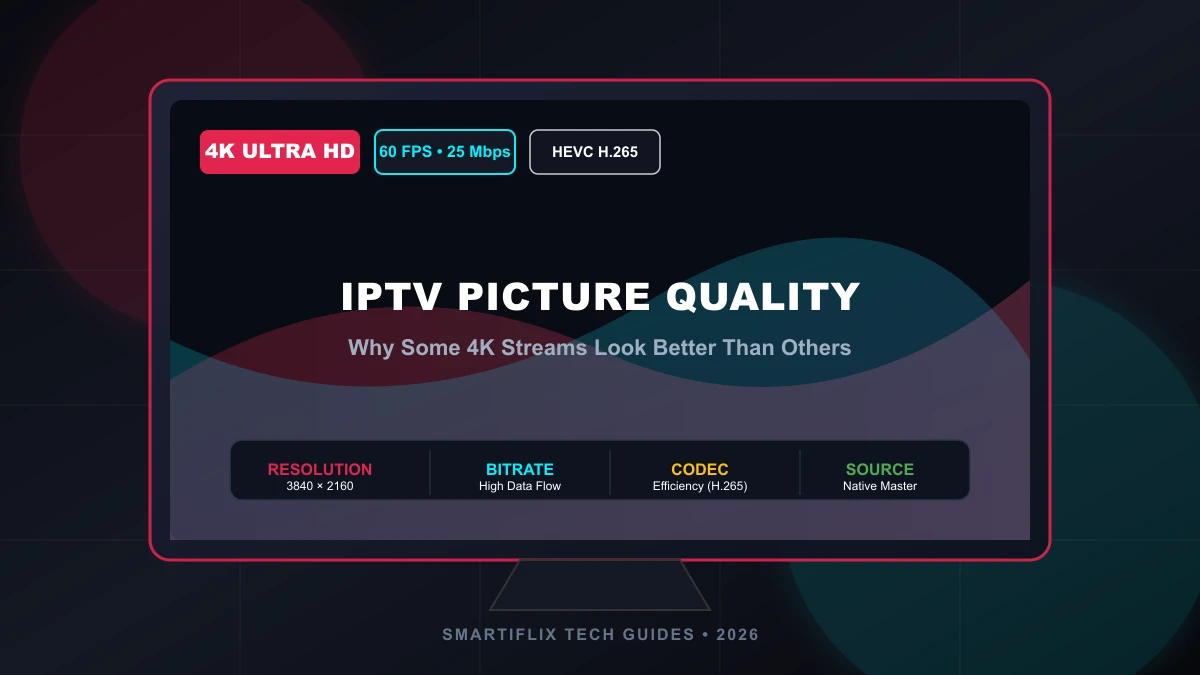
IPTV Picture Quality Explained: Why Some 4K Streams Look Better Than Others in 2026
When you unbox a modern 4K Smart TV or streaming device, you naturally expect television broadcasts to look razor-sharp, crystal-clear, and immersive. You tune into a channel labeled "4K UHD," expecting every detail—from individual blades of grass on a football pitch to fine fabric textures on a film set—to pop off the screen. But then you switch to another channel, also prominently bearing a "4K" logo, and the experience feels completely different. The image appears soft, muddy, or blocky, fast camera movements create pixelated smearing, and fine textures seem to melt into a blurry haze.
This disappointing contrast leaves many viewers scratching their heads: Why do two channels, both supposedly broadcasting in 3840×2160 resolution on the exact same display, look so dramatically different? Is your television malfunctioning? Is your internet failing? Or is the term "4K" simply a marketing buzzword?
The truth is that resolution is only one small piece of the complex puzzle that determines modern IPTV picture quality. While a 4K label tells you the pixel dimensions of a video frame, it reveals virtually nothing about the data density, compression efficiency, encoding parameters, or source fidelity that shaped that frame. In reality, two streams with identical pixel counts can deliver vastly different visual experiences based on how they are processed, encoded, transmitted, and decoded across the delivery chain.
In this comprehensive guide, we will unpack the technical realities behind 4K IPTV streaming, demystify concepts like bitrate, codecs, and frame rates, and explain why some 4K streams look breathtaking while others look barely better than standard definition. We will also provide a practical diagnostic blueprint to help you identify quality bottlenecks and get the absolute best picture performance from your Smartiflix IPTV subscription.
What Does "4K" Actually Mean?
To understand why IPTV streaming quality varies so wildly, we must first define what "4K" actually signifies in video technology. In consumer display terminology, 4K—officially designated as Ultra High Definition (UHD)—refers to a display grid measuring 3840 horizontal pixels by 2160 vertical pixels.
This pixel array yields a total resolution of approximately 8.3 million pixels per frame. Compared to standard Full HD (1080p), which contains 1920×1080 pixels (roughly 2.07 million pixels), 4K provides four times as many individual pixels. In theory, packing four times the pixel density onto your screen allows for finer edge definition, sharper text, and vastly more realistic textures.
However, a critical distinction must be made:
Resolution = The number of pixels available to form an image. Quality = How accurately each pixel represents true visual information.
A display canvas containing 8.3 million pixels only looks impressive if the video data filling those pixels contains genuine, uncorrupted detail. If an encoder takes a low-quality or heavily compressed file and spreads it across 3840×2160 pixels, the resulting image is simply 8.3 million pixels of blurry, artifact-laden data. Therefore, resolution does not equal quality. A well-encoded, high-bitrate 1080p stream will almost always look sharper and cleaner than a poorly encoded, heavily compressed 4K stream.
Why Two 4K IPTV Streams Can Look Completely Different
When you watch live television or on-demand content through an IPTV service, the video signal undergoes a multi-stage journey before reaching your eyes. Every link in this chain can either preserve visual clarity or introduce permanent compression damage.
The complete video delivery pipeline follows this progression:
Source Quality → Video Encoding → Bitrate Allocation → Network Transmission → Hardware Decoding → Television Processing
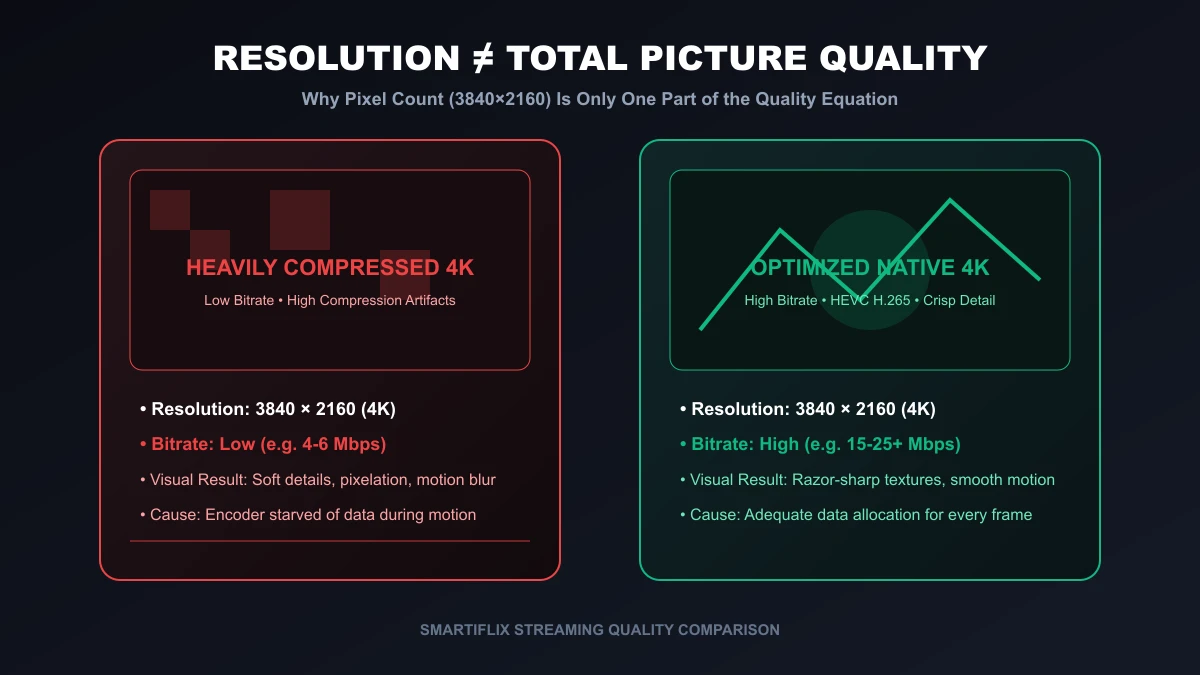 Comparison of 4K resolution and actual streaming picture quality
If any single stage in this pipeline introduces a bottleneck, the final image on your television suffers. For example, if a provider receives a pristine native 4K sports feed but compresses it down to a tiny data stream to save server bandwidth, the end viewer receives a degraded picture despite the 4K container. Conversely, if a provider offers a pristine high-bitrate feed but your streaming device lacks hardware decoding capabilities, the device may drop frames or render a soft image.
Understanding this pipeline explains why two streams with the same "4K" label can deliver completely different visual results.
Bitrate: One of the Biggest Factors in IPTV Picture Quality
If resolution represents the canvas size, bitrate represents the paint. In modern digital video, bitrate is arguably the single most critical factor determining how sharp, detailed, and clean an IPTV channel appears.
Defining Bitrate in IPTV
Bitrate is the amount of video data transmitted over a network per second, typically measured in Megabits per second (Mbps).
When a camera records a scene, it captures millions of color data points every fraction of a second. Because raw uncompressed 4K video requires several Gigabits per second—far too much data for residential internet connections—it must be compressed into a manageable bitrate before streaming. The encoder's job is to analyze the video, keep the most important visual detail, and discard information the human eye is less likely to notice.
When an encoder is given a high bitrate allocation (e.g., 15 to 25+ Mbps for 4K), it has enough data budget to preserve subtle color gradients, fine facial details, fabric textures, and complex background elements. When an encoder is forced to operate at a low bitrate allocation (e.g., 4 to 6 Mbps for 4K), it must aggressively discard visual information, causing noticeable image degradation.
Fixed Bitrate vs Variable Bitrate (VBR)
Most modern 4K IPTV bitrate management relies on Variable Bitrate (VBR) encoding. Rather than sending a constant stream of data, VBR dynamically allocates bandwidth based on scene complexity:
- Static Scenes (Low Data Demand): A newscaster sitting in front of a still background requires very little data to maintain sharp detail, because few pixels change from one frame to the next.
- High-Motion Scenes (High Data Demand): A fast-break basketball play, a Formula 1 race car roaring past camera positions, fireworks, splashing water, or dense stadium crowds require immense data because millions of pixels change simultaneously.
If a VBR stream or provider caps the maximum bitrate too low, high-motion scenes immediately break down into visual artifacts.
Common IPTV Compression Artifacts
When a 4K stream suffers from inadequate bitrate, your eyes begin to spot characteristic compression artifacts:
- Blockiness (Macroblocking): The screen divides into visible square grid tiles, particularly during fast camera pans or explosions.
- Smearing & Detail Loss: Subtle textures—such as grass on a soccer field or skin pores—turn into smooth, clay-like surfaces.
- Banding: Smooth color transitions (like a sunset or a dark room shadow) break into harsh, step-like color rings instead of seamless gradients.
- Mosquito Noise: High-contrast edges (such as white jersey numbers against a dark uniform) display ringing, buzzing pixel halos.
- Texture Disappearing: Fine background details, such as audience faces in a stadium, blur into unrecognizable noise.
It is important to emphasize that there is no universal "perfect 4K bitrate." Required bitrates vary based on the codec used, frame rate, content type, and encoder efficiency.
Resolution vs Bitrate: Which Matters More?
To understand why higher resolution does not automatically guarantee superior picture quality, consider how different resolution and bitrate combinations perform in practice:
| Stream Profile | Resolution | Bitrate Allocation | Encoding Efficiency | Real-World Visual Appearance |
|---|---|---|---|---|
| Stream A | 1080p Full HD | 12 Mbps (High) | Well-Encoded H.265 | Extremely sharp, clean edges, rich textures, zero motion artifacts |
| Stream B | 4K Ultra HD | 5 Mbps (Low) | Heavily Compressed | Soft edges, visible blockiness in motion, clay-like textures |
| Stream C | 4K Ultra HD | 22 Mbps (High) | Optimized H.265 / HEVC | True reference quality, breathtaking detail, pristine depth |
| Stream D | 1080p Full HD | 3 Mbps (Low) | Poorly Compressed H.264 | Blurry, pixelated, noticeable color banding and smearing |
As illustrated in the table above, Stream A (1080p at 12 Mbps) will consistently outperform Stream B (4K at 5 Mbps) in real-world viewing. While Stream B technically outputs more pixels, it lacks the raw data necessary to make those pixels sharp. Consequently, more pixels do not automatically mean more visible detail.
Codec: H.264 vs H.265/HEVC
The video codec (coder-decoder) is the mathematical algorithm used to compress video at the source and decompress it on your viewing device. Choosing the right IPTV codec is vital for balancing image quality with network bandwidth.
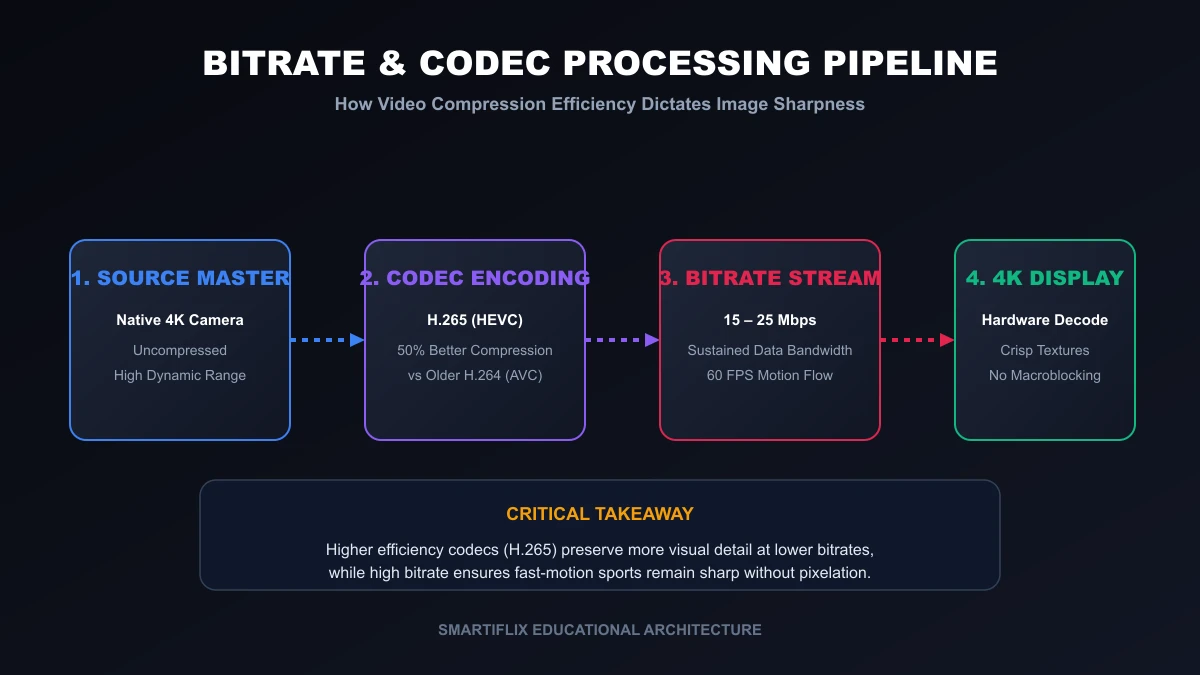 IPTV bitrate and codec streaming quality diagram
H.264 / AVC (Advanced Video Coding)
Developed in the early 2000s, H.264 remains the most widely compatible video codec on earth. Almost every smartphone, Smart TV, and legacy streaming box possesses built-in hardware chips to decode H.264 effortlessly.
However, H.264 was designed primarily for 720p and 1080p video. When applied to 4K streams, H.264 requires extremely high bitrates (often 30–40+ Mbps) to maintain clean picture quality. At lower bitrates, H.264 rapidly exhibits blockiness and detail smearing.
H.265 / HEVC (High Efficiency Video Coding)
Introduced to replace H.264, H.265 (HEVC) offers roughly 50% greater compression efficiency than its predecessor. This means an H.265 stream can deliver the same visual quality as H.264 using only half the bandwidth.
In practical terms:
- An H.264 stream at 12 Mbps might look mediocre.
- An H.265 IPTV stream at 12 Mbps can deliver stunning 4K clarity with sharp edge detail.
Why Codec Support Matters
To benefit from HEVC compression, both the provider's server and your local hardware must support H.265 decoding. Modern devices like the 4K Firestick, Apple TV 4K, Nvidia Shield, and recent Smart TVs feature dedicated HEVC hardware decoders. Older devices without hardware HEVC support must rely on software decoding, which can strain processors, cause frame drops, or produce playback sluggishness.
However, simply using H.265 does not automatically guarantee superior picture quality. If an encoder uses low-quality settings or an insufficient bitrate, an HEVC stream can still look soft.
Frame Rate and Why Sports Can Look Different
When evaluating 4K IPTV picture quality, many viewers focus entirely on static image sharpness while ignoring frame rate. Expressed in frames per second (FPS), frame rate dictates how smoothly motion is rendered across your display.
Common television frame rates include:
- 24 FPS / 25 FPS: Standard cinematic frame rate for movies and scripted drama.
- 30 FPS: Standard rate for studio news broadcasts and talk shows.
- 50 FPS / 60 FPS: High frame rate standard required for live sports, gaming, and action content.
Why Frame Rate Is Critical for Live Sports
In fast-paced sports broadcasts—such as football, basketball, tennis, or motor racing—players and cameras move rapidly across the screen. If a sports stream is encoded at only 25 or 30 FPS, fast-moving objects (like a kicked soccer ball or a moving hockey puck) will appear to stutter, jitter, or leave motion trails.
Broadcasting at 50 FPS or 60 FPS doubles the visual information delivered each second, rendering motion with fluid lifelike smoothness. However, doubling the frame rate also requires approximately 40-50% more bitrate to maintain the same per-frame picture sharpness. If a provider offers 60 FPS sports without increasing bitrate allocation, per-frame picture quality may drop, leading to compression blur.
For an in-depth look at sports streaming setups, read our guide on How to Watch Live Sports with IPTV.
Source Quality Comes Before Everything Else
There is a fundamental rule in digital media engineering:
You cannot display detail that does not exist in the source.
No television processor, upscaler, or IPTV application can magically recreate missing visual data if the original camera feed or broadcast master was low quality.
Native 4K vs Upscaled 4K
It is vital to distinguish between two completely different types of "4K" broadcasts:
- Native 4K: The event or movie was filmed with 4K/8K cameras, edited in a native 4K workflow, and transmitted as a true 3840×2160 master feed. Native 4K delivers genuine texture depth, razor-sharp background details, and true visual clarity.
- Upscaled 4K: The original broadcast was recorded in 1080p (or 720p) and scaled up to 3840×2160 pixels using mathematical interpolation before being encoded. While upscaling can sharpen lines and reduce visible pixelation on large screens, it does not add missing camera detail.
If an IPTV channel presents an upscaled 1080p feed as "4K," it will never match the pristine fidelity of a native 4K broadcast, regardless of your internet connection or TV quality.
Why Some 4K Streams Look Soft or Blurry
If your 4K IPTV channels consistently look soft, blurry, or washed out, the issue typically stems from one or more of these seven root causes:
Low Bitrate Allocation
The stream is choked for data, forcing the encoder to smooth out textures and drop fine detail to fit within tight bandwidth caps.
Aggressive In-Encoder Noise Reduction
Provider encoding software often applies heavy spatial noise reduction filters to make video easier to compress. Unfortunately, this removes grain alongside fine skin pores, hair strands, and fabric detail.
Upscaled Source
The channel originates from an upscaled HD source master rather than a native 4K feed.
Poor Encoder Settings
Encoders set to "fast" or "ultra-fast" presets process video quickly but produce significantly lower picture quality per megabit than encoders configured with "slow" or "medium" quality presets.
Network Problems
Unstable home network connections or ISP throttling trigger adaptive bitrate streaming algorithms (where supported), automatically dropping your resolution or bitrate profile.
Device Decoding
Your streaming hardware lacks dedicated HEVC decoders, forcing software decoding that degrades motion or scaling.
TV Processing
Aggressive sharpness filters, motion smoothing (soap opera effect), or active noise reduction settings on your television distort the incoming clean signal.
Does Internet Speed Affect IPTV Picture Quality?
A common misconception among television viewers is that upgrading to a faster internet package (e.g., from 100 Mbps to 1 Gbps) will automatically make their IPTV picture look sharper.
The reality is more nuanced:
Internet speed cannot add missing detail to a stream.
If a provider broadcasts a channel at 8 Mbps, receiving that channel on a 1,000 Mbps fiber line will yield the exact same 8 Mbps picture quality as receiving it on a 25 Mbps connection.
However, internet performance does impact picture quality in two critical ways:
- Sustained Bandwidth vs Raw Peak Speed: High-quality 4K streaming demands a consistent, unfluctuating bandwidth stream. If your connection suffers from high latency, packet loss, or local Wi-Fi interference, your stream may stutter or trigger adaptive bitrate drops.
- Home Network Congestion: Multiple household users downloading large files, streaming 4K movies, or playing online games simultaneously can saturate your router, starving your IPTV player of bandwidth.
To learn more about optimizing your home connection, read our detailed analysis on What Internet Speed Do You Need for IPTV?.
IPTV Player Settings That Can Affect Picture Quality
The application you use to play IPTV streams plays a major role in how video is rendered on your screen. Depending on the player software (e.g., IPTV Smarters, Tivimate, GSE Smart IPTV), several configuration options can directly influence visual output:
- Hardware vs Software Decoding: Always select Hardware Decoding (HW or HW+) in your player settings where supported. Hardware decoding offloads video processing to your device's dedicated GPU, ensuring smooth frame delivery and accurate color space mapping.
- Aspect Ratio & Display Scaling: Ensure your player is set to "Original" or "Fit to Screen" rather than "Fill Screen" or "Zoom," which stretches pixels and causes soft blurriness.
- Refresh Rate Matching (Auto Frame Rate): High-end players allow matching your device's display refresh rate to the stream's exact frame rate (e.g., switching your TV to 50Hz for European sports or 60Hz for US broadcasts), eliminating motion judder.
- Buffer Length: Increasing your buffer size (e.g., to 5–10 seconds) gives your device a safety cushion during minor bandwidth fluctuations, preventing quality drops or pauses.
If your application exhibits persistent issues, consult our guide on IPTV Not Working: 15 Things to Check First.
Your TV Can Change How IPTV Looks
Even if you receive a pristine, high-bitrate 4K HEVC stream, incorrect display settings on your television can severely compromise the picture quality.
Picture Mode Selection
Avoid preset modes labeled "Vivid," "Dynamic," or "Sports." These factory presets blow out contrast, oversaturate colors into unnatural fluorescent shades, and apply extreme sharpening filters that introduce harsh edge noise. Instead, select "Movie," "Cinema," "Calibrated," or "Filmmaker Mode" for accurate color reproduction and natural depth.
Sharpness Adjustment
Contrary to intuition, turning your TV's sharpness control up to 100% does not increase real image resolution. It simply adds artificial white outlines around high-contrast edges, creating distracting halo artifacts. Set sharpness to 0% (or the neutral midpoint recommended by your TV manufacturer).
Contrast & Brightness
Ensure contrast is calibrated to avoid clipping bright highlights, while adjusting brightness/black level so dark shadows retain subtle detail without looking washed out or overly dark.
Noise Reduction & Motion Processing
Turn off "Digital Noise Reduction" (DNR) and "MPEG Noise Reduction" when watching clean HD/4K feeds, as these filters strip away intentional film grain and fine texture. Adjust motion interpolation (Motionflow, TruMotion, Auto Motion Plus) to low settings or turn it off entirely to prevent the artificial "soap opera effect."
Understanding HDR (High Dynamic Range)
Remember that HDR is not the same as 4K resolution. 4K describes pixel count, whereas HDR (HDR10, Dolby Vision, HLG) expands the color space and contrast range between the brightest whites and deepest blacks. An HDR 4K stream will only display correctly if your display natively supports the relevant HDR format and maps colors accurately.
How to Check What Quality You Are Actually Receiving
When evaluating how to improve IPTV picture quality, use this 6-step practical diagnostic method:
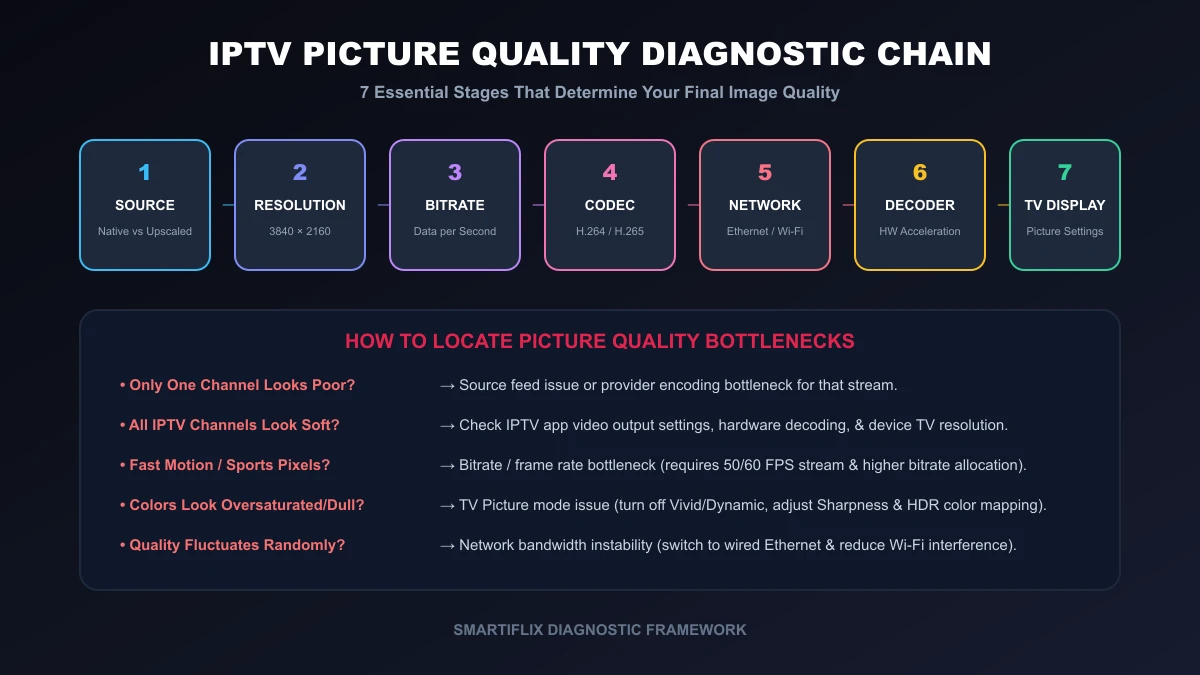 IPTV picture quality diagnostic chain from source to TV
Step 1 — Verify TV Display Output
Press the "Info" or "Display" button on your TV remote (or check your external device's display menu) to verify the current output signal. Confirm whether it reads 3840×2160 @ 60Hz, 1080p, or lower.
Step 2 — Inspect Player Stream Statistics
Open your IPTV application's technical overlay (often listed as "Stream Info," "Video Details," or "Playback Information"). Look for actual stream stats: resolution, active codec (H.264 vs H.265), frame rate (29.97 vs 59.94 FPS), and real-time bitrate (Mbps).
Step 3 — Compare Multiple Channels
Switch between several channels broadcasting similar content (e.g., compare two different sports networks). If one looks razor-sharp while another looks soft, the issue lies in the individual channel source feed rather than your television or network.
Step 4 — Evaluate High-Motion Scenes
Observe sports or action scenes carefully. If static studio hosts look sharp but moving players become blocky or smudged, the stream is suffering from a bitrate or frame rate limitation.
Step 5 — Test a Wired Ethernet Connection
Temporarily connect an Ethernet cable directly from your router to your streaming device. If picture stability or adaptive quality improves significantly, your Wi-Fi signal was bottlenecking delivery.
Step 6 — Test on an Alternate Compatible Device
Stream the same channel on a second device (such as a tablet or computer). If the image looks pristine on your computer but soft on your TV, re-examine your TV picture modes or player decoding settings.
How to Tell If the Problem Is the Stream or Your Setup
Use this quick decision tree to isolate image quality issues instantly:
-
Scenario A: Only one specific channel looks soft or blocky. → Diagnosis: Source feed or provider encoding limitation for that channel. Your local setup is functioning normally.
-
Scenario B: All 4K IPTV channels look soft, blurry, or washed out. → Diagnosis: Check your IPTV player's video output resolution, verify hardware decoding is active, and reset your TV picture mode to Cinema/Filmmaker.
-
Scenario C: Mainstream streaming apps (Netflix, YouTube) look flawless, but IPTV looks poor. → Diagnosis: The specific IPTV stream's bitrate or compression profile is the limiting factor. The TV display and internet connection are healthy.
-
Scenario D: Picture quality fluctuates continuously from sharp to blurry during playback. → Diagnosis: Local network instability, Wi-Fi interference, or ISP throttling triggering adaptive streaming adjustments. Consult our IPTV Buffering Guide.
Experience Premium IPTV Streaming in 4K
Get instant access to live channels, movies, and sports in crystal-clear 4K & HD. Watch without interruptions.
4K IPTV Quality Checklist
Before assuming a stream is defective, review this comprehensive 4K picture quality checklist:
- Source Integrity: Is the broadcast native 4K or an upscaled HD master?
- Bitrate Allocation: Does the channel provide adequate Mbps for high-motion content?
- Codec Efficiency: Is the stream encoded using H.265 / HEVC for maximum compression efficiency?
- Frame Rate: Is live sports broadcasting at 50 FPS or 60 FPS for fluid motion?
- Connection Stability: Is your device connected via a stable wired Ethernet cable or 5GHz Wi-Fi band?
- Hardware Decoding: Is Hardware Decoding (HW/HW+) enabled in your player app settings?
- Display Calibration: Is your TV set to Cinema/Filmmaker mode with sharpness set to neutral and DNR turned off?
- HDR Compatibility: Does your TV properly support the incoming HDR color format?
Common IPTV Picture Quality Myths
Let us debunk six widespread myths surrounding IPTV video quality:
Myth 1: "A 4K label guarantees magnificent picture quality."
Fact: Resolution only defines pixel dimensions. A low-bitrate, heavily compressed 4K stream can easily look worse than a clean, high-bitrate 1080p stream.
Myth 2: "Upgrading to a 1 Gbps internet plan will make IPTV streams look sharper."
Fact: Internet speed cannot add missing data to a low-bitrate source feed. Once your connection meets the stream's required bitrate (e.g., 25 Mbps), extra internet speed provides no image quality boost.
Myth 3: "Every 4K channel requires the exact same bitrate."
Fact: Required bitrates vary based on codec efficiency, frame rate, and content complexity. A static talk show requires far less bitrate than a fast-paced football match.
Myth 4: "H.265 / HEVC always looks better than H.264."
Fact: While H.265 is twice as efficient as H.264, poor encoder settings or aggressive compression can still produce a low-quality HEVC stream.
Myth 5: "Setting TV sharpness to maximum yields the clearest image."
Fact: Maximum sharpness introduces artificial white edge outlines and noise halos that destroy authentic detail. Neutral sharpness produces the truest picture.
Myth 6: "Upscaling a 1080p stream turns it into native 4K."
Fact: Upscaling fills pixel gaps using mathematical estimation, but it cannot recreate true camera detail that was never recorded.
How to Get the Best Picture Quality From IPTV
Follow these ten actionable steps to maximize your viewing experience:
- Choose a High-Bitrate Provider: Select an IPTV service like Smartiflix that prioritizes stream bandwidth and source quality.
- Use Capable Streaming Hardware: Equip your TV with a modern device featuring dedicated H.265 hardware decoders (Apple TV 4K, Firestick 4K Max, Nvidia Shield).
- Connect via Ethernet: Replace unstable Wi-Fi connections with direct Ethernet wiring whenever possible.
- Enable Hardware Decoding: Select HW/HW+ decoding in your IPTV player software settings.
- Calibrate TV Picture Modes: Switch your TV to Cinema, Movie, or Filmmaker mode, and turn off "Vivid/Dynamic" presets.
- Zero Out Excessive Sharpness: Reduce TV sharpness to neutral (0-10%) to eliminate halo artifacts.
- Disable Noise Reduction Filters: Turn off Digital Noise Reduction (DNR) to preserve authentic picture texture.
- Match Frame Rates: Enable Auto Frame Rate (AFR) matching in compatible player applications.
- Keep App & Device Firmware Updated: Ensure your operating system and player software are regularly updated for optimal codec support.
- Compare Channels: Check multiple source feeds to determine whether quality issues are stream-specific.
Ready for Superior Picture Quality?
Enjoy buffer-free streaming with our high-bitrate servers and premium bandwidth. Instant setup on all devices.
Frequently Asked Questions
Conclusion
Navigating modern television technology can feel complex, but the core lesson is straightforward: 4K is a resolution statement, not a complete quality guarantee.
A pristine viewing experience depends on the health of the entire delivery chain:
Native Source + Efficient Codec + High Bitrate + 60 FPS Frame Rate + Unbroken Network + Hardware Decoding + Calibrated 4K Display
When a 4K stream looks disappointing, the key is to methodically identify which stage of the pipeline is limiting visual quality. By optimizing your TV settings, selecting capable decoding hardware, utilizing wired network connections, and choosing a premium service, you can enjoy true reference-grade entertainment.
If you are ready for a superior television experience, explore Smartiflix subscription plans today and discover how our high-bitrate, stable infrastructure elevates your home viewing!