How to Set Up IPTV on Samsung Smart TV in 2026
How to Set Up IPTV on Samsung Smart TV in 2026
Samsung Smart TVs are among the most popular television displays in households worldwide, celebrated for their vibrant 4K QLED and OLED panels, responsive user interface, and rich app ecosystem. When cutting the cord on traditional cable or satellite subscriptions, many television owners naturally want to transform their living room screen into a complete entertainment hub using Internet Protocol Television (IPTV).
However, if you are setting up modern digital television streaming for the first time, navigating the Samsung Smart TV IPTV setup process can occasionally raise questions. Because Samsung Smart TVs operate on Samsung's proprietary Tizen OS platform rather than standard Android software, downloading streaming applications and configuring your channel lists requires following specific steps tailored to the Samsung ecosystem.
In this step-by-step guide, we will explain exactly how to set up IPTV on Samsung Smart TV in 2026. You will learn what components are required before starting, how to choose a compatible Samsung IPTV app, how to install and launch player applications from the Samsung Smart Hub, how to add your authorized credentials via Xtream Codes or M3U playlist URLs, how to configure your Electronic Program Guide (EPG), and how to optimize settings for a smooth viewing experience alongside your Smartiflix IPTV subscription.
What You Need Before Starting
Before you begin configuring IPTV on Samsung Smart TV, ensure you have all necessary components ready. Having these items prepared will make the installation process fast and straightforward:
- A Compatible Samsung Smart TV: Ensure your television is powered on and connected to your home network.
- Stable Internet Connection: High-definition (1080p) streams typically require a sustained download speed of at least 15 Mbps, while 4K Ultra HD broadcasts require 25+ Mbps. For detailed bandwidth recommendations, read our guide on what internet speed you need for IPTV.
- Samsung Remote Control: You will need your original Samsung TV remote control (or Magic Remote equivalent) to navigate menus, open the Samsung Smart Hub, search for applications, and type login details.
- Compatible IPTV Player Application: An application downloaded from the Samsung App Store designed to decode and render channel streams (such as IPTV Smarters Pro or IBO Player).
- Authorized IPTV Account Credentials: Valid account access details provided by your legitimate service operator, such as Smartiflix.
Understanding Your Credentials
Depending on the specific player application you choose, your provider will supply access details in one of two standard formats:
-
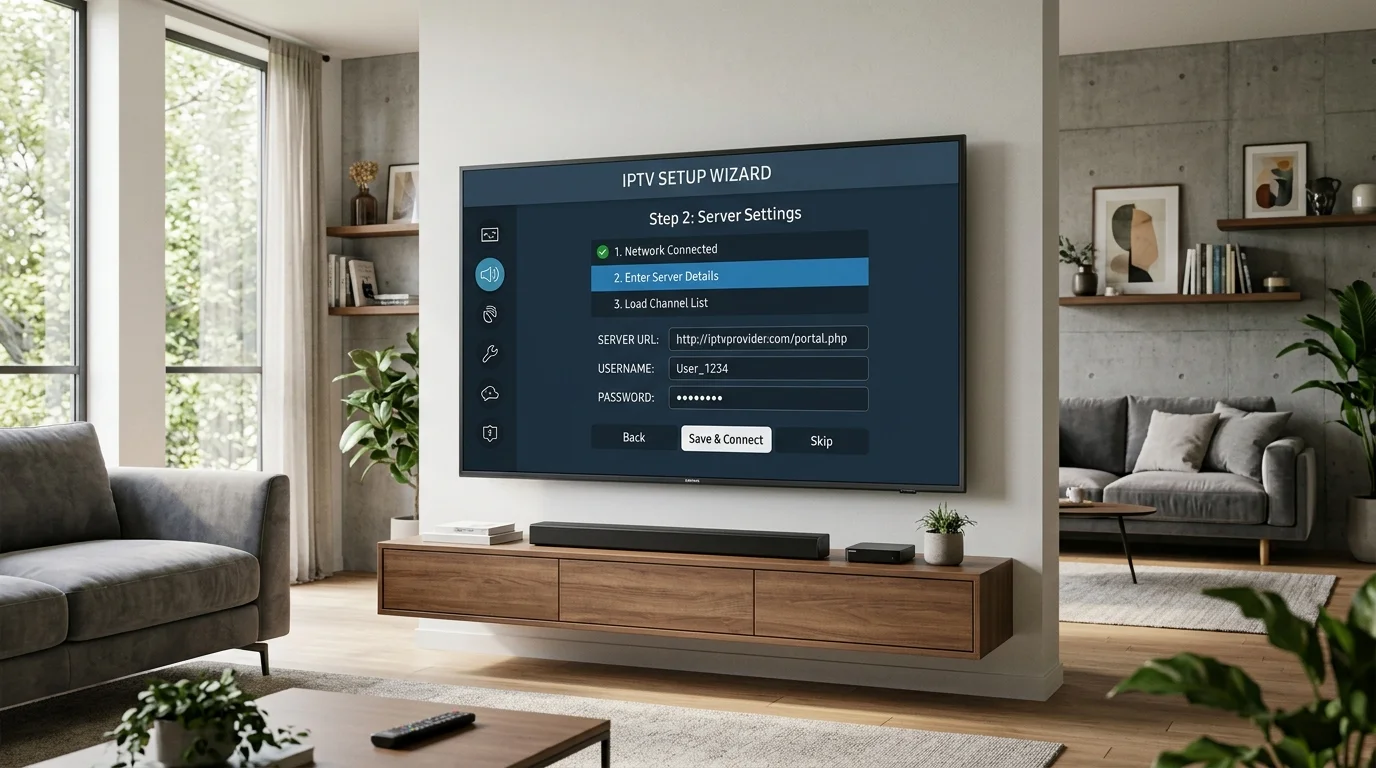
Xtream Codes API Credentials:
- Server / Host URL: (e.g.,
http://YOUR_SERVER_URL:PORT) - Username: (e.g.,
YOUR_USERNAME) - Password: (e.g.,
YOUR_PASSWORD)
- Server / Host URL: (e.g.,
-
M3U Playlist URL:
- M3U Link: (e.g.,
http://YOUR_SERVER_URL/get.php?username=YOUR_USERNAME&password=YOUR_PASSWORD&type=m3u_plus)
- M3U Link: (e.g.,
Note: Always keep your private login credentials secure. Never share your password or server links on public forums or review platforms.
Check Your Samsung Smart TV System & Network
Before downloading new applications, taking two minutes to check your Samsung TV's system settings and network status ensures a smooth setup without unexpected interruptions.
1. Verify Internet Connection
Navigate to your TV's system menu: $$ ext{Settings} ightarrow ext{General} ightarrow ext{Network} ightarrow ext{Network Status}$$
Ensure your TV displays an active internet connection. If you are using Wi-Fi, verify that your signal strength shows at least three or four bars. For maximum playback stability, connecting an Ethernet network cable directly from your internet router to your TV's LAN port is highly recommended.
2. Check Samsung Firmware / Software Version
Outdated TV system software can prevent new applications from loading or cause playback crashes. To check for software updates: $$ ext{Settings} ightarrow ext{Support} ightarrow ext{Software Update} ightarrow ext{Update Now}$$
If a new system update is available, allow your TV to complete the installation and restart before proceeding.
3. Log into Your Samsung Account
To download applications from the Samsung Smart Hub, your TV must be signed into a free Samsung Account. If you have not created one yet, navigate to Settings → General → System Manager → Samsung Account and follow the on-screen prompts to sign in.
Choose a Compatible IPTV Player for Samsung TV
A crucial concept to understand before starting is that Samsung Smart TVs do not come with built-in channel subscriptions. Your television requires an application—known as an IPTV player—to render the channel feeds supplied by your provider.
Because Samsung TVs run on Tizen OS, you must select an application available natively in the Samsung App Store. To compare features in depth, read our guide on the best IPTV players for Smart TV in 2026.
Here are the top recommended native player choices for Samsung Smart TV:
| IPTV Player App | Native Samsung App Store Availability | Connection Support | Best Interface Feature | Ideal For |
|---|---|---|---|---|
| IPTV Smarters Pro | Yes (Free Download) | Xtream Codes & M3U | Multi-User Tile Dashboard | Beginners & Families |
| IBO Player | Yes (Trial / One-time License) | Xtream Codes & M3U | Sleek Glassmorphism Design | Modern 4K QLED/OLED TVs |
| Smart IPTV (SIPTV) | Yes (Legacy / Select Models) | M3U via MAC Address | Lightweight Numeric Channel List | Minimalist Viewers |
| SS IPTV | Yes (Free Download) | M3U & Playlist Codes | Simple Category Shortcuts | Budget-Conscious Users |
For most users setting up a Samsung IPTV app for the first time, IPTV Smarters Pro or IBO Player offers the most intuitive user experience, fastest channel changing speeds, and best EPG support.
Step-by-Step: How to Install an IPTV App on Samsung Smart TV
Follow this step-by-step walkthrough to download and install a compatible player application on your Samsung display:
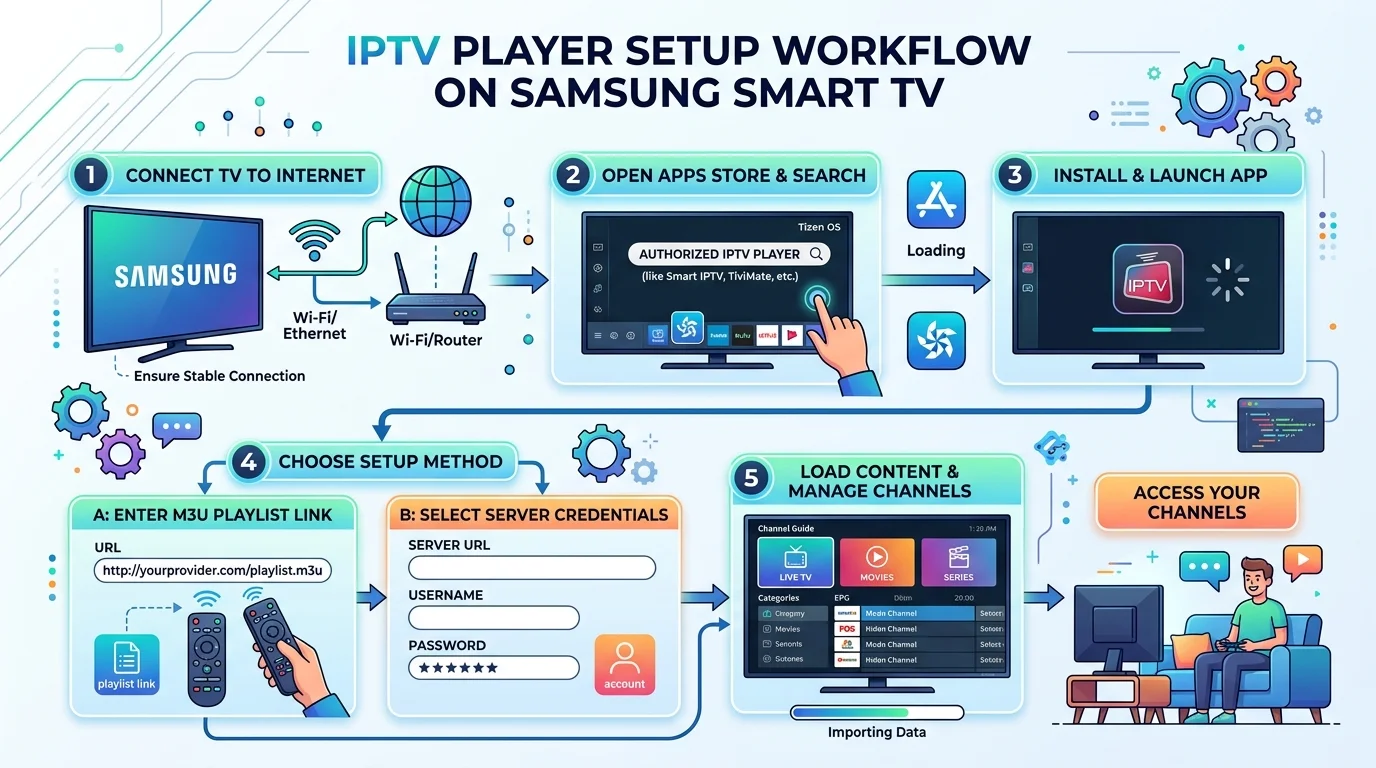 Clean visual showing step by step workflow of setting up an IPTV player on a Samsung Smart TV
Step 1 — Connect Your Samsung TV to the Internet
Power on your Samsung Smart TV. Press the Home button on your Samsung remote control to bring up the main smart hub navigation menu at the bottom of your screen. Confirm that your TV is connected to your home Wi-Fi network or Ethernet line.
Step 2 — Open the Samsung App Store
Using your remote control's directional arrow keys, navigate to the Apps icon (represented by a four-tile grid symbol) on the home launcher bar and press Select / Enter. This opens the official Samsung Smart Hub App Store catalog.
Step 3 — Search for a Compatible IPTV Player
Select the Search icon (magnifying glass) in the top-right corner of the screen. Using the on-screen virtual keyboard, type the name of your chosen player application—for example, type "IPTV Smarters Pro" or "IBO Player".
Step 4 — Install the Application
Select the target application from the search results page to open its official app detail screen. Click the Install or Download button. The Samsung Smart Hub will download the application files and install them onto your television's internal storage within a few seconds.
Step 5 — Open the IPTV Player
Once installation completes, click Open to launch the application immediately. You can also select Add to Home so the application icon remains permanently accessible on your main Samsung Smart TV home screen.
How to Add Your IPTV Account Information
Once you open your installed player application for the first time, the software will prompt you to configure your viewing access credentials. Legitimate service providers like Smartiflix support both major login methods. Choose the method matching the options presented by your player application:
Method A: Xtream Codes API Setup (Recommended)
The Xtream Codes API method is the easiest and most reliable configuration method because it automatically syncs live channels, program guides, and video-on-demand libraries without requiring long URL strings.
- Open your player application (e.g., IPTV Smarters Pro).
- Select Add User or Add Playlist.
- Choose the option labeled "Login with Xtream Codes API".
- Fill in the four requested entry fields using your remote control:
- Any Name: Type a nickname for your profile (e.g.,
Smartiflix TV). - Username: Enter
YOUR_USERNAMEprovided in your welcome email. - Password: Enter
YOUR_PASSWORDprovided in your welcome email. - Server URL: Enter
http://YOUR_SERVER_URL:PORTprovided in your welcome email.
- Any Name: Type a nickname for your profile (e.g.,
- Click Add User or Login.
The application will connect to the streaming server, authenticate your account, download your channel categories, and populate your Electronic Program Guide.
Method B: M3U Playlist URL Setup
If your selected player application (such as Smart IPTV or SS IPTV) relies on an M3U playlist link rather than an API login screen, follow these steps:
- Select Add Playlist or Load M3U URL inside your player application.
- Enter a profile name (e.g.,
Smartiflix M3U). - Carefully type your full M3U URL provided by your service operator into the Playlist URL field.
- If using an application like Smart IPTV (SIPTV), note the 12-character MAC Address displayed on your TV screen (e.g.,
00:1A:79:XX:XX:XX). - Open a web browser on your smartphone or computer, navigate to the application's official playlist upload portal (e.g.,
http://siptv.app/mylist/), enter your TV MAC address along with your M3U URL, and click Send / Save. - Return to your Samsung TV and restart the application to load your channels.
How to Set Up Electronic Program Guide (EPG)
An Electronic Program Guide (EPG) transforms raw channel numbers into an organized television grid matching traditional cable broadcasts, displaying show names, air times, show descriptions, and network logos.
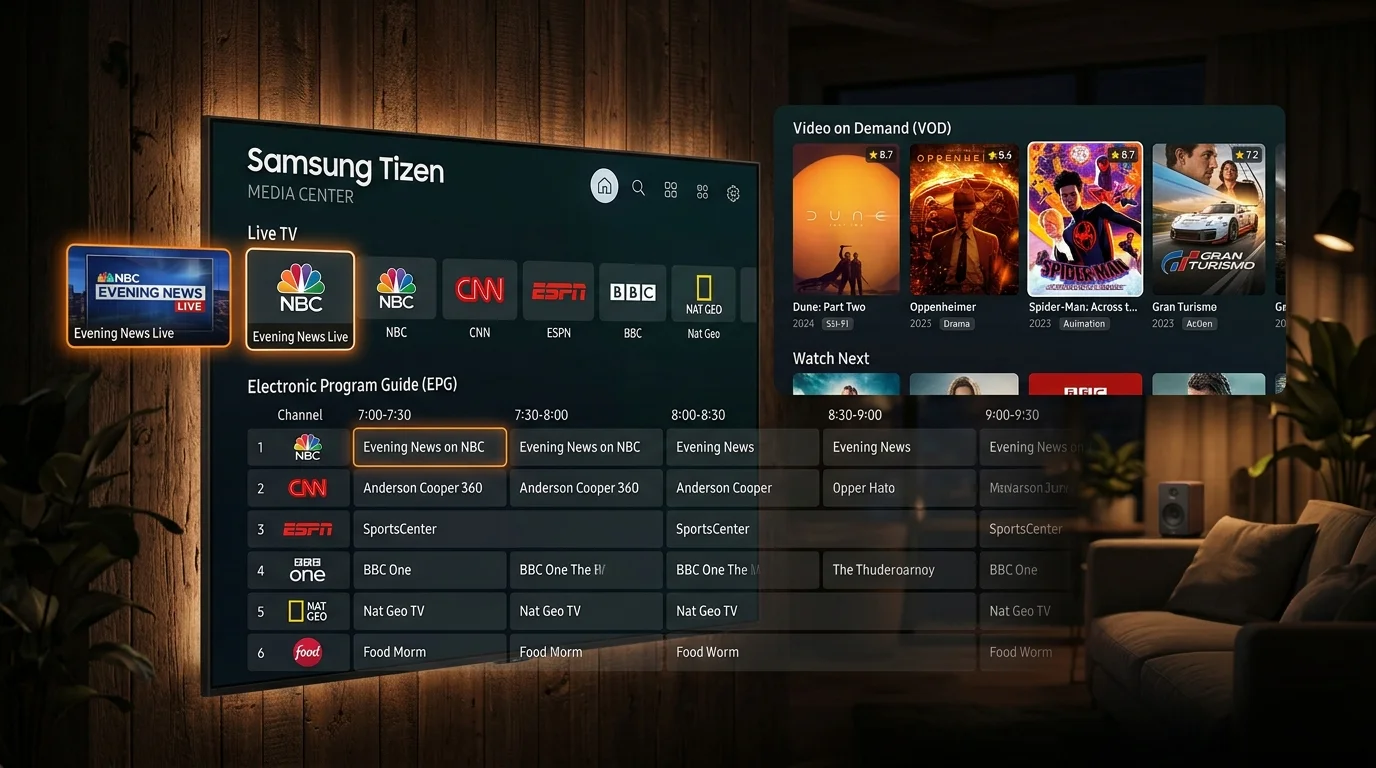 Samsung Tizen OS Smart TV showing Live TV channels, EPG grid, and Video on Demand posters
Automatic EPG Loading
If you configured your player using Method A (Xtream Codes API), your Electronic Program Guide installs automatically! The player fetches live schedule data directly from the server in the background.
Manual EPG URL Configuration
If your application asks for a separate EPG link or if program details appear blank, navigate to: $$ ext{App Settings} ightarrow ext{EPG Sources} ightarrow ext{Add EPG Source}$$
Type your provider's XMLTV EPG URL into the field provided (e.g., http://YOUR_SERVER_URL/xmltv.php?username=YOUR_USERNAME&password=YOUR_PASSWORD) and click Save & Refresh.
Allow 1 to 2 minutes for the application to index program schedules across all channel categories.
Load Channels and Test Playback
After completing your account login and EPG sync, verify that your Samsung Smart TV IPTV setup is functioning perfectly by running through this quick playback checklist:
- Test Live TV Categories: Open the Live TV menu. Select a category (such as News, Sports, or Entertainment) and click on a broadcast channel. Confirm that video renders in crisp high definition and audio plays cleanly without delay.
- Verify Channel Switching Speed: Use your remote control's channel up/down buttons or directional pad to flip between three or four different channels. Channel changes on a stable network should take 1 to 2 seconds.
- Open the EPG Guide Grid: Press the Guide or EPG button inside the app interface. Confirm that current show names and upcoming time slots display correctly.
- Check Video-on-Demand (VOD): If your plan includes on-demand movies or TV series, open the Movies or Series tab. Confirm that cover art posters load and test playback on an on-demand title. Learn more about on-demand capabilities in our guide on what VOD means in IPTV.
- Inspect Audio & Subtitles: While playing a movie or channel, press the Select / Option button on your remote to bring up playback controls. Verify that multi-audio tracks and subtitle options function where available.
If all tests pass smoothly, your television is fully configured for daily viewing!
Experience Premium IPTV Streaming in 4K
Get instant access to live channels, movies, and sports in crystal-clear 4K & HD. Watch without interruptions.
Best IPTV Settings for Samsung Smart TV
To get the absolute best visual clarity, lowest channel delay, and smoothest performance out of your IPTV player Samsung Smart TV setup, optimize these essential settings inside your TV and player application menus:
Picture Quality & Scaling
- TV Picture Mode: Set your Samsung TV picture preset to "Movie", "Cinema", or "Filmmaker Mode". Avoid factory "Vivid" or "Dynamic" modes, which introduce excessive contrast and artificial sharpening halos around video edges.
- Aspect Ratio: Inside your player settings, select "Fit to Screen" or "Original" rather than "Zoom" or "Stretch," which distorts native video dimensions.
- Hardware Video Decoding: Ensure Hardware Acceleration (HW / HW+) is enabled in your app settings. Hardware decoding offloads video processing to your Samsung TV's dedicated GPU, ensuring smooth frame delivery for 4K HEVC streams. Read our technical analysis on IPTV 4K picture quality explained.
Audio & Multi-Track Selection
- Pass-Through / Bitstream: If your Samsung TV is connected to an external soundbar or AV receiver via HDMI eARC, set your TV audio output to "Pass-Through" so Dolby Digital or multi-channel audio tracks decode natively.
Favorites & Category Management
- Create a Favorites List: Browsing through thousands of global channels using a TV remote can take time. Highlight your most frequently watched networks and click Add to Favorites for instant one-click access from your main menu.
- Hide Unused Groups: Navigate to category management settings and hide international language packages you do not watch to keep your menu clean.
Automatic Updates
- Keep Apps & Firmware Updated: Set your Samsung Smart Hub to update applications automatically (Apps → Settings → Auto Update → On). Developer updates frequently improve stream compatibility and fix memory bugs.
Understanding IPTV on Samsung Tizen OS
Understanding how Samsung's operating system functions helps set realistic expectations for your viewing environment:
What Is Tizen OS?
Samsung Smart TVs run on Tizen OS, a Linux-based operating system developed by Samsung specifically for Smart TVs, monitors, and smart appliances. Unlike Android TV or Google TV, Tizen OS uses a closed application ecosystem managed directly through the Samsung Smart Hub.
Tizen Capabilities vs Android TV
- Native App Integration: Applications downloaded from the Samsung App Store integrate smoothly with Samsung's Smart Remote, ambient mode, and audio routing.
- No Direct Android APK Installation: Samsung Smart TVs cannot install standard Android APK files directly. You cannot download Android-only apps like TiviMate directly onto a Samsung TV without using an external Android TV streaming box or Amazon Firestick.
- Regional App Store Availability: Application availability in the Samsung Smart Hub varies depending on your TV model year and country region. An application available on a 2025/2026 Samsung TV in North America may differ slightly in other international app stores.
If you ever wish to use Android-exclusive applications alongside your Samsung display, simply plug a 4K Firestick or Chromecast into an HDMI port. Check our general device setup instructions on our IPTV installation guide.
Common Samsung IPTV Setup Problems & Quick Fixes
If you encounter minor issues during your setup process, consult these fast, practical troubleshooting solutions:
1. IPTV App Cannot Be Found in Samsung App Store
- Cause: The application may not be supported on your specific TV model year, or it may be unavailable in your country's regional app store catalog.
- Solution: Search for alternative verified native applications like IBO Player, IPTV Smarters Pro, or SS IPTV. Alternatively, change your Samsung TV account region or attach an inexpensive external streaming stick (such as an Amazon Firestick 4K).
2. IPTV App Cannot Connect to Server / Authorization Error
- Cause: Incorrect server URL, username, or password entry; or network connectivity interruption.
- Solution: Re-check your login details for typos, extra spaces, or case-sensitivity errors. Confirm that your TV's internet connection is active by opening YouTube or another built-in app.
3. Playlist Does Not Load or Freezes at 0%
- Cause: Heavy network congestion, DNS blocking by your internet service provider, or an expired subscription account.
- Solution: Restart your Samsung TV by holding the Power button on your remote for 5 seconds until the Samsung logo reappears. Restart your home Wi-Fi router. If the issue persists, consult our technical guide on IPTV channels not loading causes and fixes.
4. EPG Guide Is Empty or Displaying Wrong Times
- Cause: Incorrect system time zone settings on your television.
- Solution: Navigate to Samsung Settings → General → System Manager → Time → Clock. Ensure your TV clock is set to Auto or matches your exact local time zone.
5. Channels Buffer or Freeze During Playback
- Cause: Unstable Wi-Fi signal, local network saturation, or ISP bandwidth throttling.
- Solution: Connect an Ethernet cable directly from your router to your TV. For comprehensive diagnostic steps, consult our master guide on IPTV buffering 15 causes and fixes and our general guide on IPTV not working: 15 things to check first.
Samsung Smart TV vs Other Streaming Devices
When planning your home entertainment setup, consider how using a native Samsung TV application compares with adding an external streaming device:
| Feature | Samsung Smart TV (Native App) | Amazon Firestick 4K | Apple TV 4K / Nvidia Shield |
|---|---|---|---|
| Hardware Required | TV Display Only (Zero Extra Devices) | Compact HDMI Dongle | Dedicated Streaming Box |
| Remote Control | Single Samsung TV Remote | Firestick Remote / TV Remote | Premium Ergonomic Remote |
| App Availability | Selected Tizen Store Apps (Smarters, IBO) | Full Amazon / Android Ecosystem | Apple App Store / Google Play |
| Processing Power | Dependent on TV Model Year | Fast Quad-Core | Industry-Leading Processing |
| Ease of Use | 10/10 (One-Click TV Startup) | 9/10 (Input Switching) | 9.5/10 (Ultra Fluid UI) |
Streaming directly through native Samsung applications is ideal for clean, minimalist living rooms without extra power cables. If you stream across multiple televisions in your household, read our complete guide on how to watch IPTV on multiple TVs.
Smartiflix Compatibility on Samsung Smart TV
Smartiflix is engineered for flawless compatibility across Samsung Smart TVs, Tizen OS displays, and all major media player applications.
When you sign up for a Smartiflix pricing plan, your account includes:
- High-Bitrate 4K & HD Live Streams
- Instant Xtream Codes API Authentication
- Direct M3U & M3U8 Playlist URLs
- Comprehensive EPG Program Guide Data
- 24/7 Technical Customer Support
Whether you choose IPTV Smarters Pro, IBO Player, or Smart IPTV on your Samsung display, Smartiflix connects seamlessly to deliver premium live television, live sports, and an extensive VOD entertainment catalog.
Before subscribing, you can review our full Smartiflix channel list, explore how Smartiflix works, or check our Smartiflix FAQ page for detailed service answers.
Ready for Superior Picture Quality?
Enjoy buffer-free streaming with our high-bitrate servers and premium bandwidth. Instant setup on all devices.
Frequently Asked Questions
Conclusion
Setting up IPTV on Samsung Smart TV in 2026 is a quick, straightforward process when you follow a structured approach. By installing a high-performance native application like IPTV Smarters Pro or IBO Player from the Samsung Smart Hub, entering your authorized credentials via Xtream Codes, and optimizing your display settings, you can transform your Samsung TV into a world-class television streaming center.
Ready to experience high-bitrate live television and premium entertainment on your Samsung display? Explore Smartiflix subscription plans today, browse our complete channel lineup, or contact our 24/7 support team for personalized setup assistance!